

User documentation — draft
Contents
- About this documentation
- Background
- More than CRM: xRM
- History
- Architecture
- What the system contains
- Users and privileges
- System overview
- Navigeringsfältet (Navigation bar)
- Meny Start (Start menu)
- Inställningar (Settings)
- Märkningar (Tags)
- Koncern (Corporate group)
- Företag (Company)
- Personkort (Person card)
- Importguiden (Import guide)
- Projekt (Project)
- Offert / Order (Quotes and orders)
- Fakturering (Invoicing)
- Mallbrev (Letter templates)
- Artikel (Articles)
- Kalender / Agenda (Calendar / Agenda)
- Korrespondens (Correspondence)
- Glossary
About this documentation
The KVP 26 user interface is in Swedish, and I apologise that it is not available in English. This documentation is in English. Every name you will see on screen — tabs, buttons, layouts — is written here exactly as it appears in the system, in bold Swedish. The first time a term appears, an English translation follows it in parentheses. All terms are collected in the Glossary at the end.
For developers, the technical documentation describes how KVP 26 is built: the architecture, the naming conventions for fields, scripts, table occurrences and layouts, and the plug-ins.
Background
KVP 26 is a CRM system.
I built Sweden's first CRM system in 1989. The term CRM did not exist yet; systems like this were called sales systems. Mine was WSS — Watz Sales System. Ten years later the three-letter acronym CRM had become established, and Salesforce was founded in 1999.
The name Kundvårdsprogrammet (KVP) means "the customer care program".
More than CRM: xRM
Strictly speaking, KVP is an xRM system, where the x can stand for any kind of relationship:
| Letter | Relationship management with … |
|---|---|
| C | Customers |
| E | Employees |
| P | Partners |
| S | Suppliers |
| I | Investors and other stakeholders |
| M | Media |
History
KVP was first built in 2004 and has now been updated to FileMaker 26.
KVP has been the foundation for custom solutions built for my clients. Two of them have used their own versions of the system for more than 20 years. Each solution is tailored to its client, and each client has invested about 1,000 hours of development in it since the start.
KVP 26 itself had not been developed for 15 years before this update.
Architecture
KVP 26 is a separation-model solution in three FileMaker files:
| File | Role |
|---|---|
| KVP 26 ED | Front end: layouts, scripts and navigation. |
| KVP 26 ED Database | Data: all tables and records. |
| KVP 26 ED Documents | Documents: stored files and attachments. |
The technical documentation describes the files and how they are connected in more detail.
What the system contains
- Koncernkort (Corporate group card)
- Företagskort (Company card)
- Personkort (Person card)
- Agenda / Kalender (Agenda / Calendar), built on Händelser (Events)
- Dokument / Korrespondens (Documents / Correspondence)
- Projekt (Projects)
- Offert / Order (Quotes / Orders)
- Fakturering (Invoicing)
As a general rule, every part has two views: a Lista (list view) and an Inmatning (entry view), the form where one record is viewed and edited.
Users and privileges
KVP 26 uses standard FileMaker security: every user has their own FileMaker account, and the account's privilege set decides what the user can do. KVP has no login of its own, and the guest account is disabled. Users sign in through FileMaker's own login dialog.
Accounts
- A user is a Person whose Persontyp (person type) is Användare (User).
- The account name is the person's Initialer (initials). That is how KVP connects the account to the person.
- Every user has the same account in all three files, with the same name, password and privilege set. The account scripts below create and change all three accounts together, so the files never get out of step.
- Passwords must be at least 8 characters long.
- A new user gets a temporary password and must choose a new one at the first login. The same applies after an administrator resets the password.
Privilege levels
In KVP a user has a Behörighetsnivå (privilege level). Each level corresponds to a privilege set with the same rules in all three files.
| Level in KVP | Privilege set | What the user can do |
|---|---|---|
| Utvecklare (Developer) | Kundutvecklare | For the client's own developer. Works with all data and can add and customise layouts and scripts in the front end, but cannot change the database schema. Can administer users at every level, but only through KVP — not in FileMaker's Manage Security. |
| Superuser | Superuser | Creates, edits and deletes data everywhere. Can administer users, but cannot give anyone the Utvecklare level or manage those users. |
| Användare (User) | Användare | Creates, edits and deletes data, but cannot delete letter templates or tags. Cannot administer users. |
| Titta (Viewer) | Titta | Can read data but not change it, and cannot export. |
Additional rules for all four levels:
- Users can change their own password.
- Superuser and Användare cannot delete a person who has a user account.
- The fields that hold a person's account information are read-only for everyone. Only the account scripts write to them.
The solution owner's Admin account has [Full Access]. It is managed only in FileMaker's Manage Security, never from inside KVP.
Two extended privileges control the account functions:
| Extended privilege | Allows | Levels |
|---|---|---|
| AdmLosen | Administering users | Utvecklare, Superuser |
| BytLosen | Changing one's own password | All four levels |
Administering users
The settings layout Meny_Inställningar has an Användare (Users) button. It is visible only to users with the AdmLosen privilege. It opens the Användare list, which shows each user's Namn (name), Initialer, Nivå (level), Status and Måste byta (must change password).
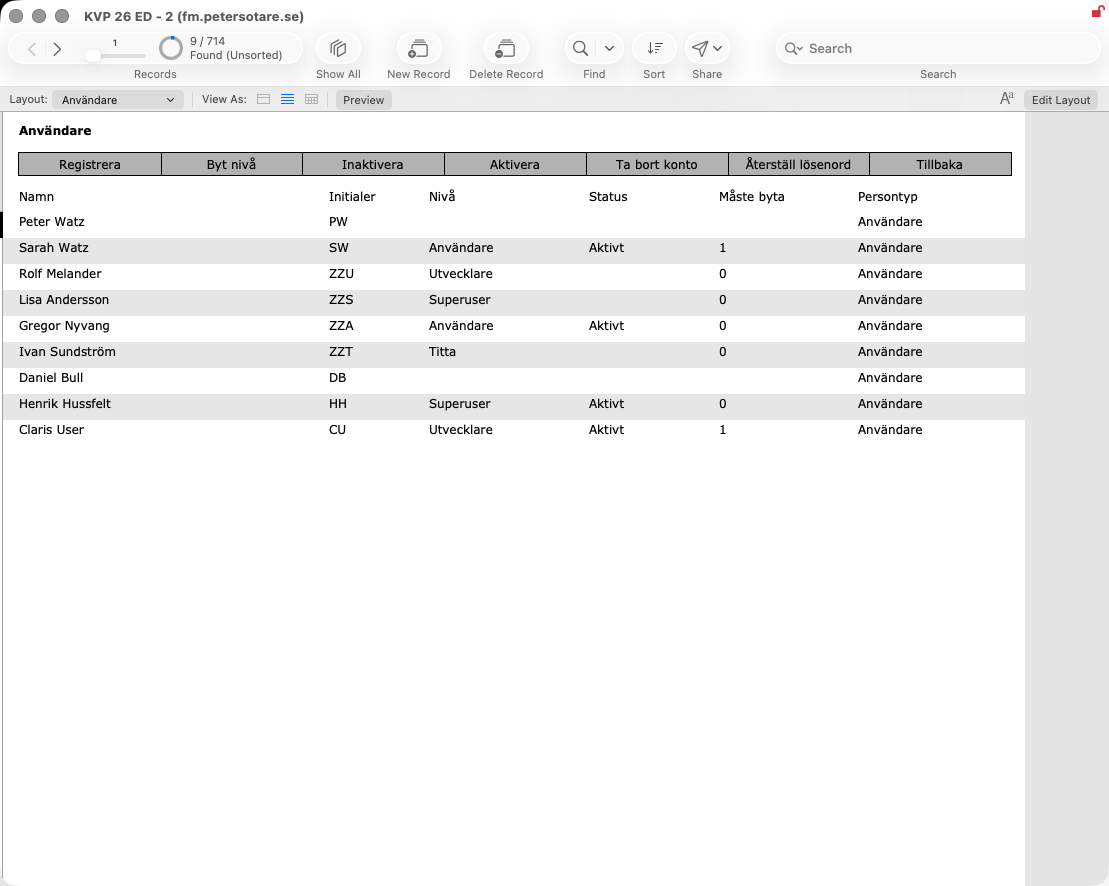
Select a person in the list, then use one of the buttons:
| Button | What it does |
|---|---|
| Registrera (Register) | Creates the person's account in all three files. The administrator chooses the level and gets a temporary password to give to the user. |
| Byt nivå (Change level) | Gives the user another level and a new temporary password. |
| Inaktivera (Deactivate) | Disables the account; the user can no longer log in. |
| Aktivera (Activate) | Enables a deactivated account again. |
| Ta bort konto (Delete account) | Deletes the account in all three files. The person record stays. |
| Återställ lösenord (Reset password) | Gives the user a new temporary password. |
No one can change their own account from this list.
For every user
On the person card, under Övrig info:
- Byt lösenord (Change password) changes your own password in all three files at once.
- Ändra lösenord (Change passwords) opens the Användare list for administrators.
To switch user, use the log-out button on Meny_Inställningar. KVP closes, and the next user logs in through FileMaker's login dialog when KVP is opened again.
At every login, KVP checks that the account belongs to an active user. If it does not, KVP shows a message and closes. If the user must change their password, the change dialog opens before anything else. If the user cancels it, KVP closes.
The account scripts
All account scripts are in the Konto group. The scripts that change accounts run with full access, but each one first checks the privileges of the account that called it.
| Script | File | Purpose |
|---|---|---|
| Konto – efter inloggning [Sub] | Front end | Runs at start-up. Connects the account to the person and stops inactive users. |
| Konto – byt eget lösenord [Start] | Front end | Changes the logged-in user's password in all three files. It is also used for the forced change at first login. |
| Konto – visa användare [Start] | Front end | Opens the Användare list. |
| Konto – administrera [Start] | Front end | Runs the buttons on the Användare list. |
| Konto – dialogval [Sub] | Front end | Handles the level dialog Välj behörighetsnivå (Choose privilege level). |
| Konto – byt användare [Start] | Front end | Closes KVP so another user can log in. |
| Konto – alla filer [Sub] | Front end | Runs one account step in the data file, then the documents file, then the front end. It stops at the first error and undoes the step in the files already changed. |
| Konto – utför [Sub] | All three files | Performs one account step — create, activate, deactivate, reset, delete or change password — in its own file. It never touches the Admin account. |
| Konto – sätt personfält [Sub] | Data file | Writes the level, status and "must change password" fields on the person, which are read-only for everyone else. |
Passwords exist only in script variables while a script runs. They are never stored in fields or logs.
System overview
Navigeringsfältet (Navigation bar)
At the top of every layout is the navigation bar. Its icons take you to the main parts of KVP:

| Icon | Goes to |
|---|---|
| House | Meny Start (Start menu) |
| Group of buildings | Koncern (Corporate groups) |
| Building | Företag (Companies) |
| Two persons | Person (Persons) |
| Calendar | Kalender (Calendar), the week overview |
| Folder with documents | Dokument (Documents and correspondence) |
| Persons at a table | Projekt (Projects) |
| Folder | Order (Quotes and orders) |
| Invoice | Faktura (Invoices) |
Below the icons is a row of tools. Which tools it shows depends on the module:
- Yellow arrows go back and forward between the places you have been.
- Buttons for the module's reports, today's agenda, searching, showing all records and sorting.
- Buttons for creating a new record, deleting the current one, and creating a new document, event, order or invoice for the current company or person.
- A button quits KVP.
Meny Start (Start menu)
The start menu is the first thing you see after logging in. The buttons along the top take you straight to the most common tasks: search for a company or a person, write a new document, create a new event, write a new order, and the Importera (Import) guide. There is also a button for logging out and switching user.
Dagenskontakter (Today's contacts)
Your agenda for the day: the events you are to handle, with Init (Initials), Tid (Time), Typ av kontakt (Contact type) and Att göra, Företag, Person (What to do, company and person). An icon marks VIP contacts, and Prio marks prioritised events.
- Användare (User) and Datum (Date) choose whose agenda, and which day, to show.
- Avklarade (Completed) also shows events that are completed.
- Visa allas (Show everyone's) shows the events of all users.
- The arrow on a row takes you to the place where the event was created: the company, person, document, project, order or invoice.
A quote of the day is shown above the list.
Överblick (Overview)
Key figures for the whole customer base:
- How many customers are at each stage of the sales process, for example Påbörjad (Started), Fått info (Received information), Möte bokat (Meeting booked), Uppföljning (Follow-up), Ska köpa (Will buy), Ramavtal (Framework agreement), Tackat nej (Declined) and Ej kvalificerad (Not qualified). Click a stage to see its customers.
- Call results: Upptaget/Ej svar (Busy/No answer) and Ring åter (Call back).
- Results of the BFS sales strategy: BFS-Avslut (Closed deal), BFS-Besök (Visit), BFS-Demo (Demo), BFS-Info (Information), BFS-Ej intresserad (Not interested) and BFS-Ej kvalificerad (Not qualified).
- Märkning (Tags): each tag with Antal Företag (Number of companies) and Antal Personer (Number of persons). Click a tag to see those companies or persons.
Inställningar (Settings)
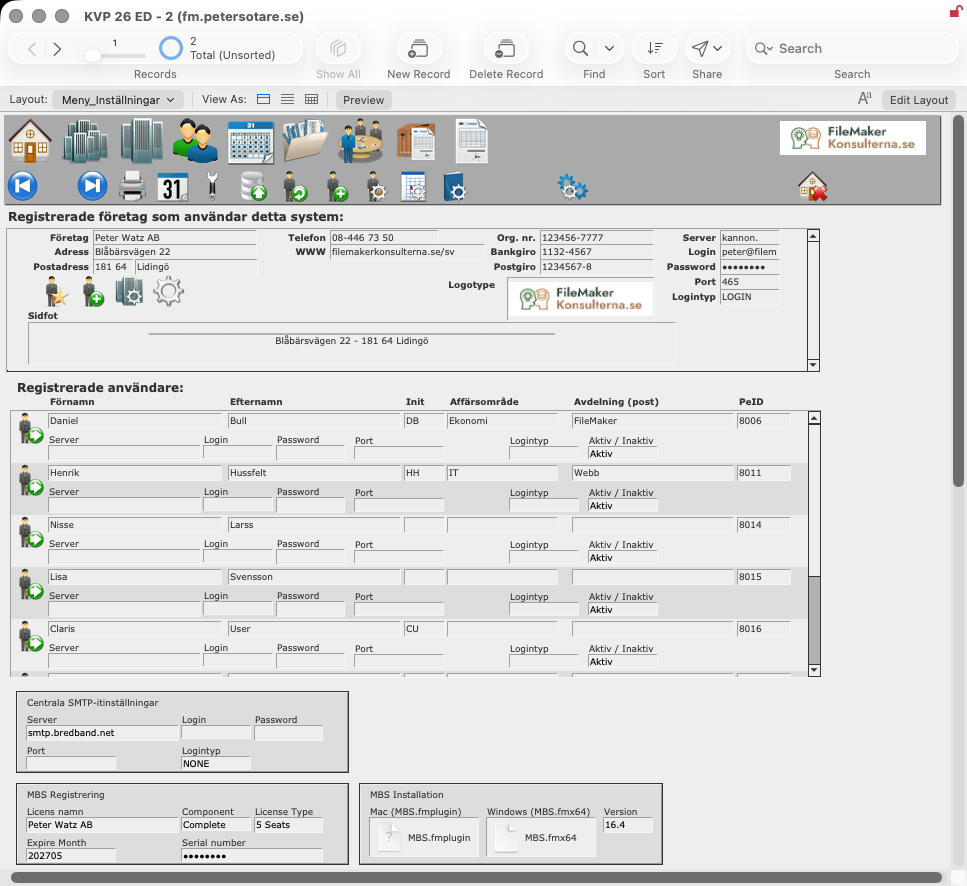
The Meny_Inställningar layout holds the settings for the whole system:
- Registrerade företag som använder detta system (Registered companies using this system): your own company, with address, telephone, website, corporate identity number, Bankgiro and Plusgiro, the Logotype (Logo) and the Sidfot (Footer) printed on letters, and the company's mail server.
- Registrerade användare (Registered users): the members of staff who use KVP, with initials, business area and department, each with their own mail server settings and Aktiv / Inaktiv (Active / Inactive).
- Centrala SMTP-inställningar (Central SMTP settings): the mail server used for sending email when a user has no settings of their own.
- MBS Registrering and MBS Installation: the licence for the MBS plug-in, and the plug-in files that KVP installs if the plug-in is missing.
Märkningar (Tags)
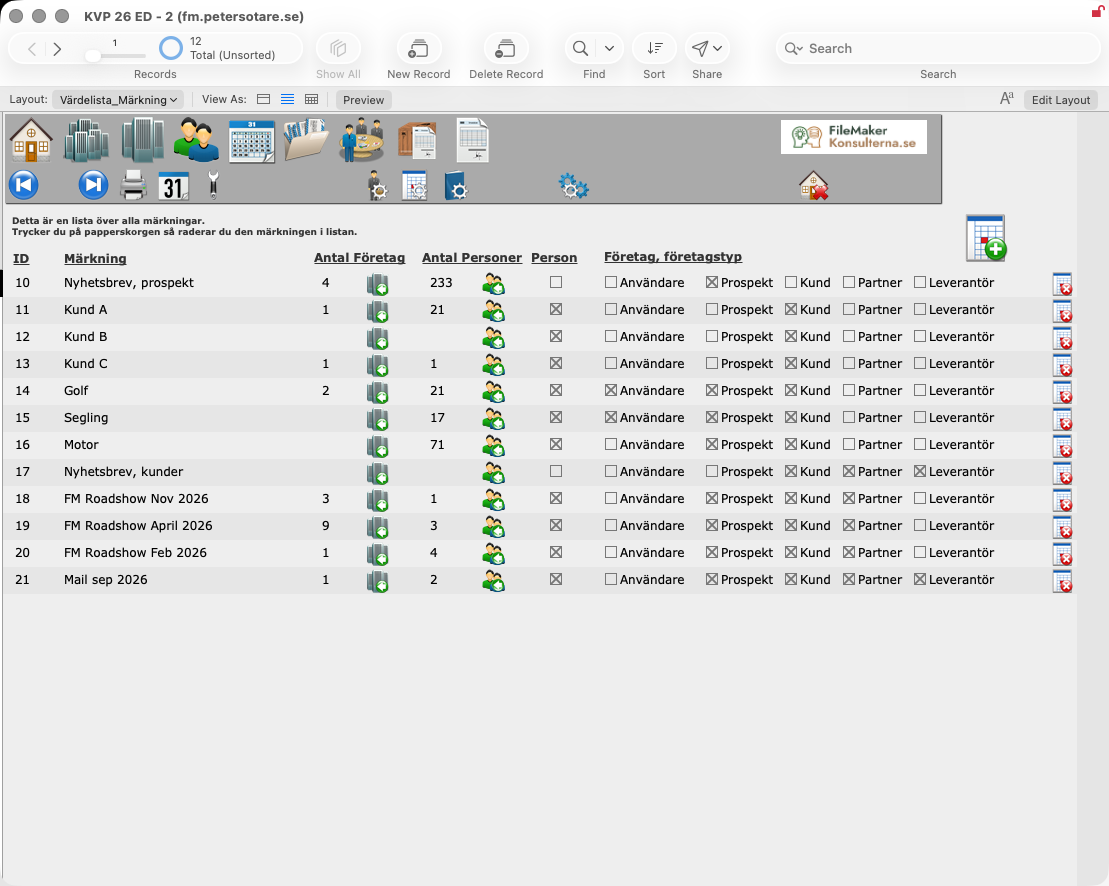
The tag list (Värdelista_Märkning) shows every tag with its ID, Märkning (Tag), Antal Företag (Number of companies) and Antal Personer (Number of persons). The icons show the companies or persons that have the tag.
- Person: whether the tag can be given to persons.
- Företag, företagstyp (Company, company type): which kinds of company the tag can be given to — Användare (User), Prospekt (Prospect), Kund (Customer), Partner and Leverantör (Supplier).
- The button at the top right creates a new tag. The bin on a row deletes the tag.
Koncern (Corporate group)
The corporate group card gives an overview of everything that belongs to a corporate group:
- Företag (Companies) in the corporate group
- Kontaktperson (Contact persons) at the corporate group's companies
- Märken (Tags) on the companies and persons
- Dokument (Documents)
- Händelser (Events)
- Offert/Order (Quotes/Orders)
- Fakturor (Invoices)
Företag (Company)
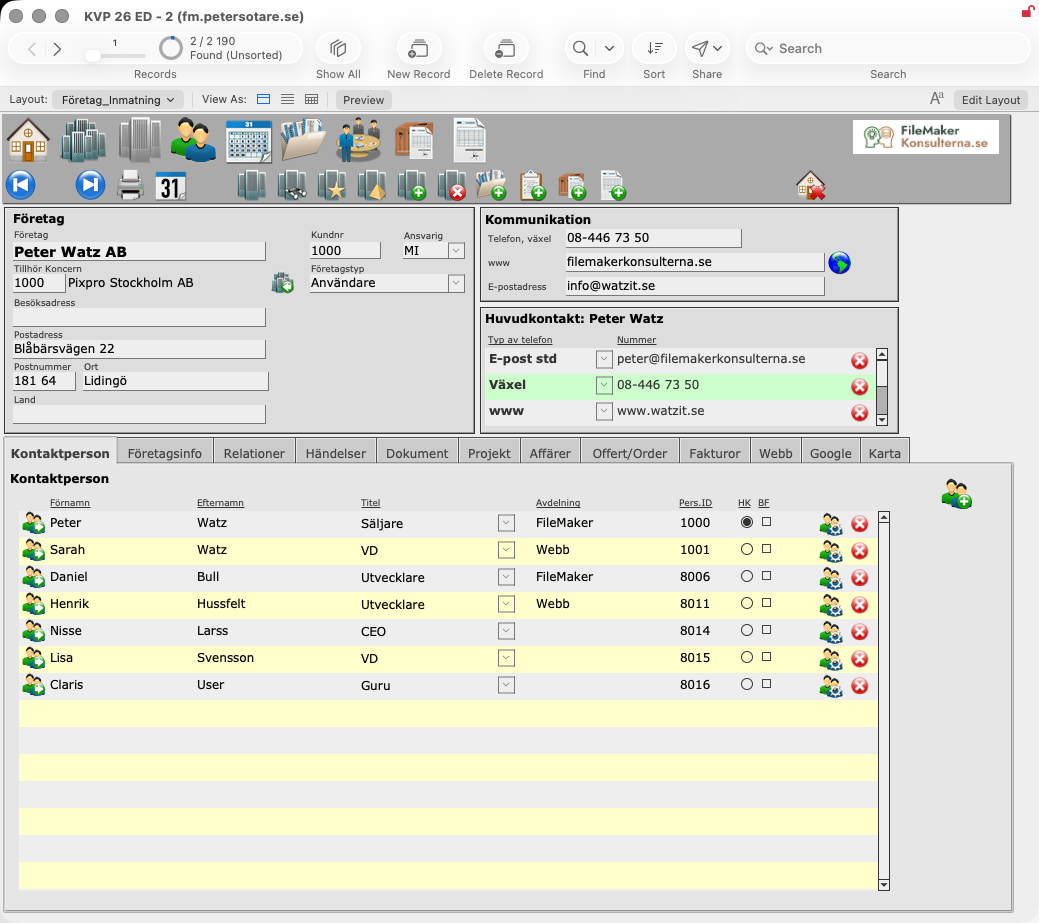
Every company we are in contact with is registered here: prospects, customers, suppliers, partners, media, press and so on.
Kontaktperson (Contact person)
A company can have several contact persons. New contact persons are registered here.
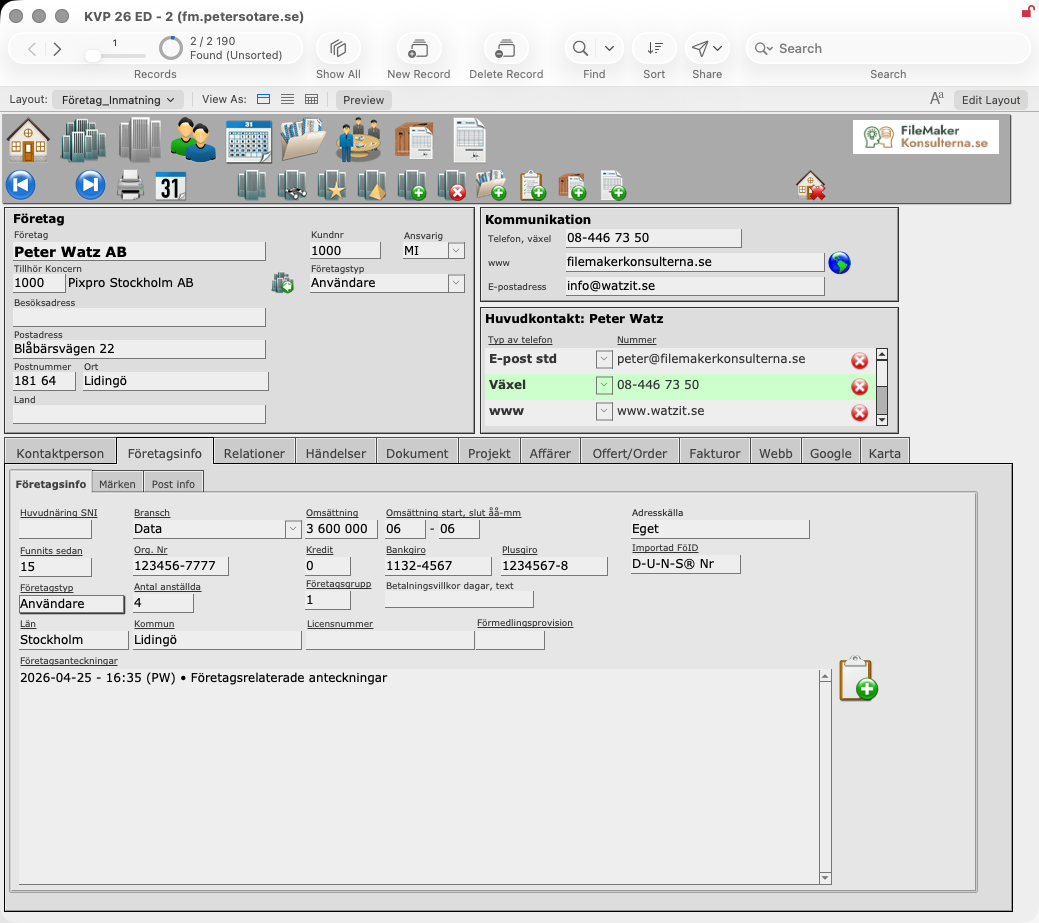
Företagsinfo (Company info)
More facts about the company:
- Huvudnäring SNI (Main industry, Swedish SNI code) and Bransch (Industry).
- Omsättning (Turnover), with the start and end of the financial year.
- Antal anställda (Number of employees) and Funnits sedan (In business since).
- Org. Nr (Corporate identity number), Bankgiro and Plusgiro (Swedish payment account numbers), and Kredit (Credit rating).
- Företagsgrupp (Company group, 1–3), Företagstyp (Company type) and Betalningsvillkor (Payment terms, in days).
- Län (County), Kommun (Municipality), Licensnummer (Licence number), Förmedlingsprovision (Referral commission) and Adresskälla (Address source).
- Företagsanteckningar (Company notes): notes about the company, with a button that adds a new note stamped with date, time and your initials.
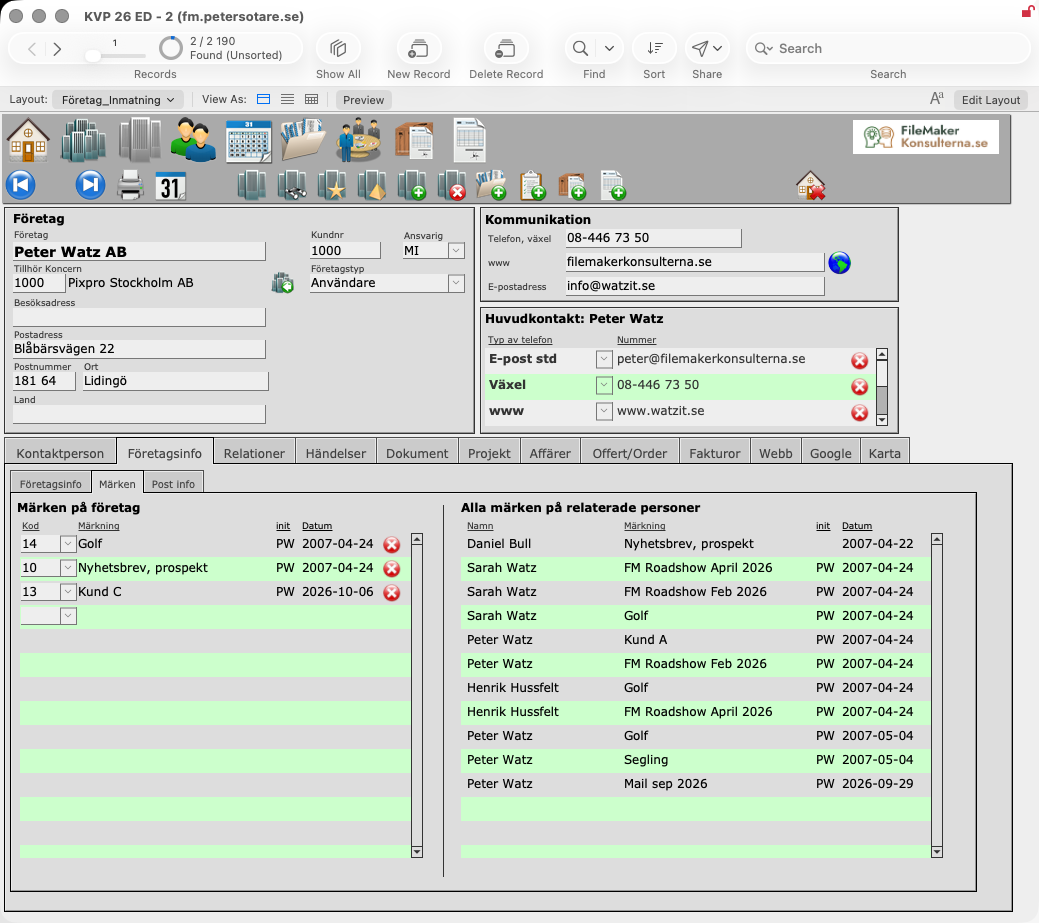
The sub-tab Märken (Tags) shows the tags on the company, and every tag on the persons connected to it. The sub-tab Post info (Record info) shows when the company record was created and last changed, and by whom.
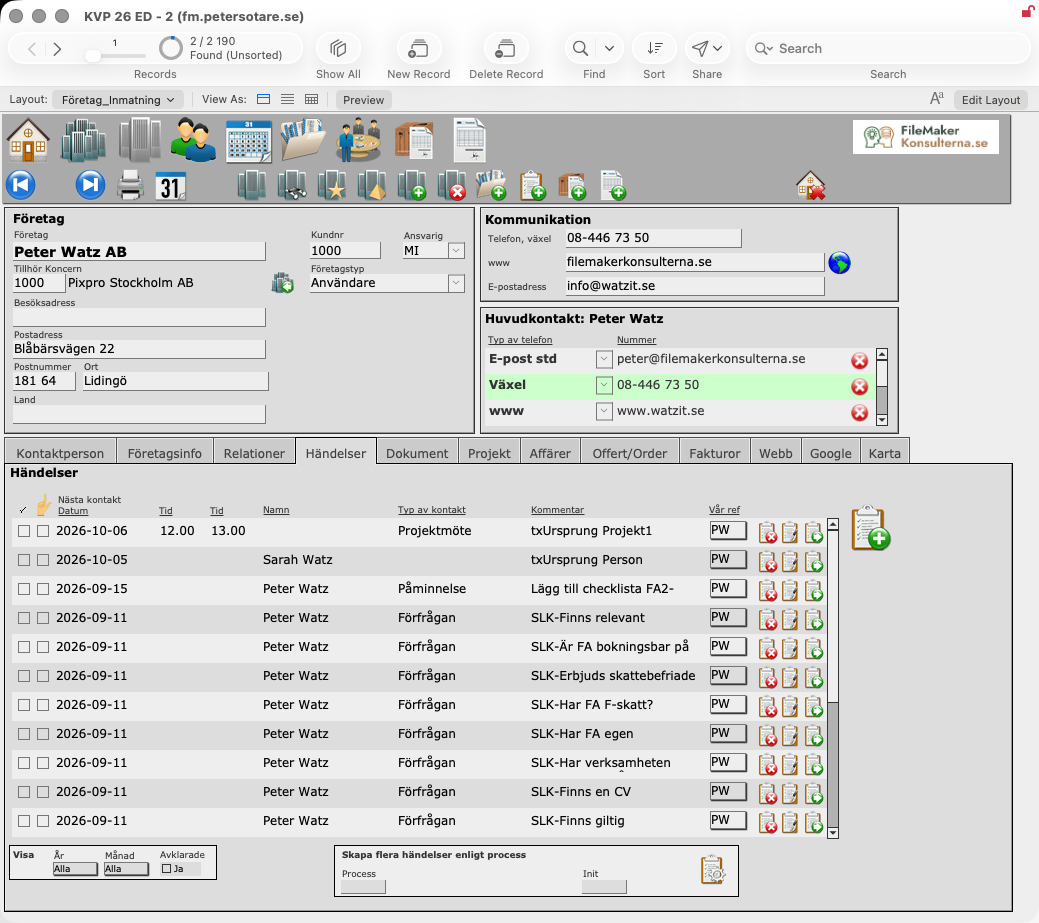
Händelser (Events)
All events for the company and its contact persons, with Nästa kontakt (Next contact: date and time), Namn (Name), Typ av kontakt (Contact type), a comment and Vår ref (Our reference). As on the project card:
- a button creates a new event;
- Visa (Show) filters by År (Year), Månad (Month) and Avklarade (Completed);
- Skapa flera händelser enligt process (Create several events from a process) creates a series of events in one go.
On each row you can delete the event, copy it to a new one, or go to the place where it was created.
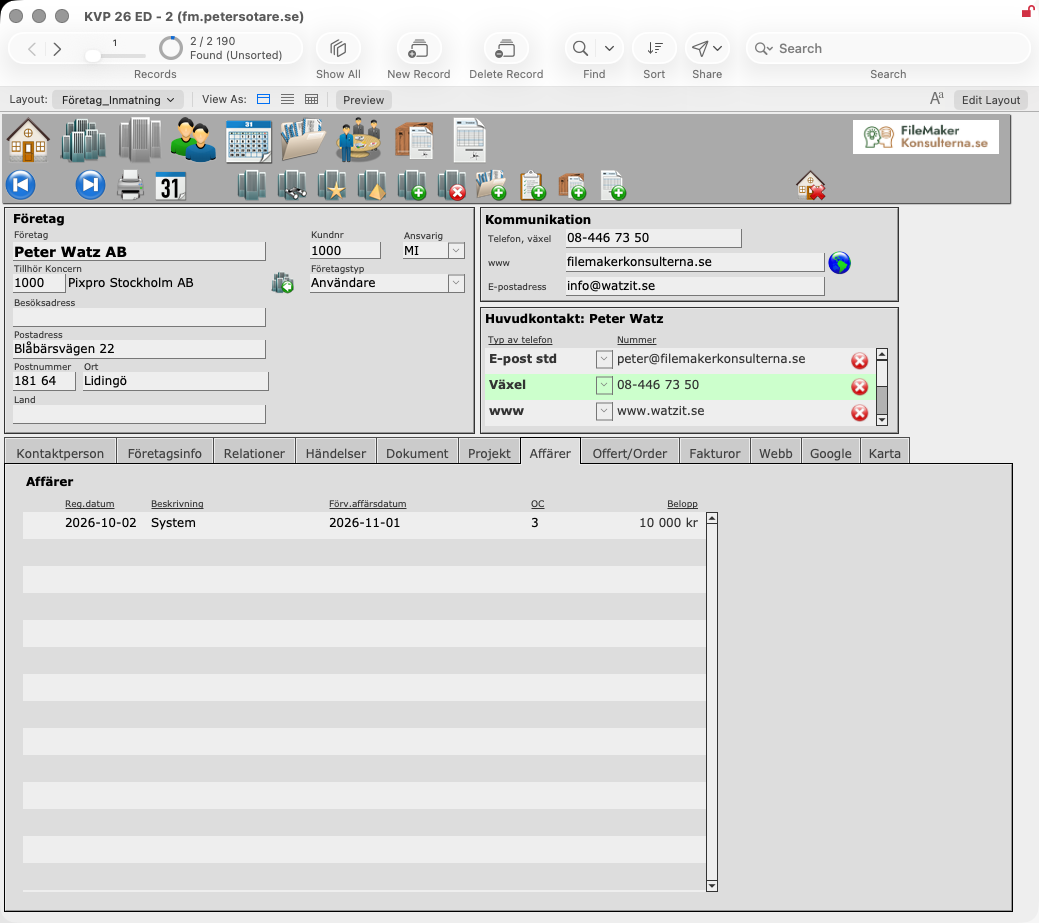
Affärer (Deals)
A simple list of business opportunities with the company: Reg.datum (Date registered), Beskrivning (Description), Förv.affärsdatum (Expected deal date), OC (Order chance, 1–5) and Belopp (Amount).
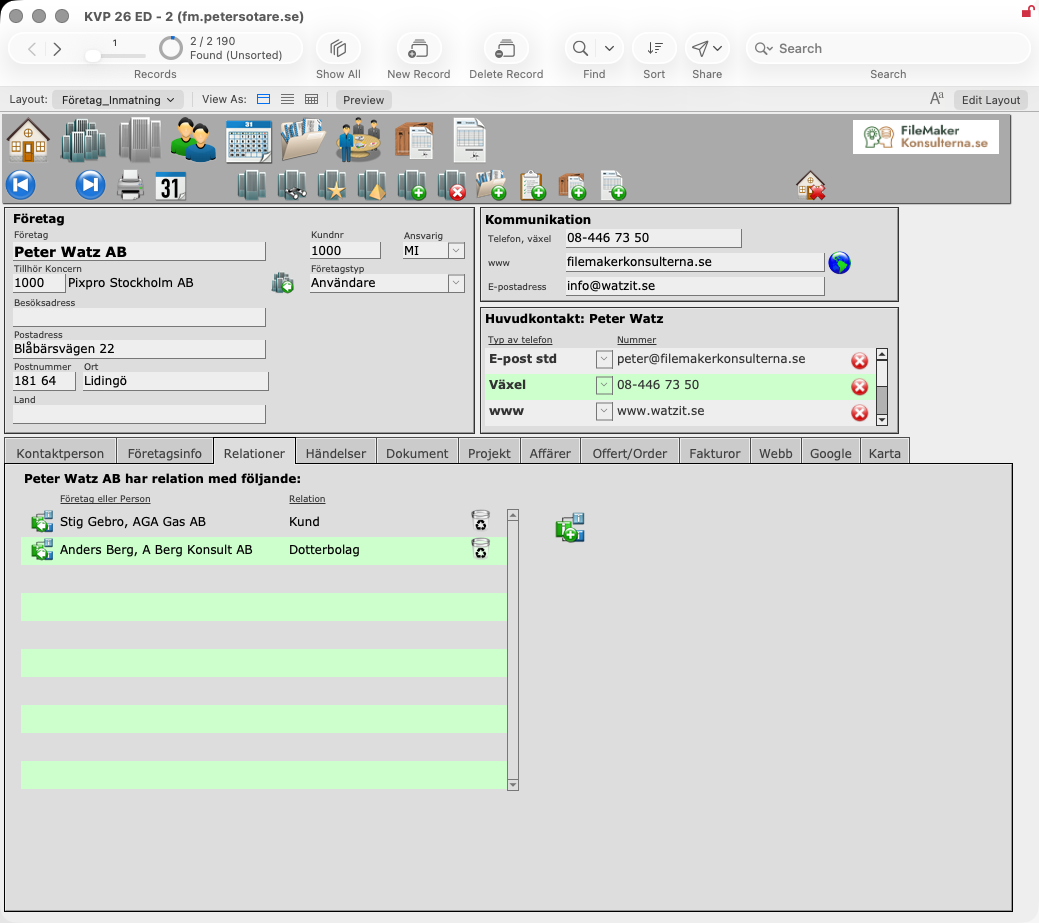
Relationer (Relationships)
Shows relationships between:
- company and company, for example customer and supplier (see customer number 1000);
- company and person, for example employer and employee (see customer number 2566);
- person and person (see PersonID 8016).
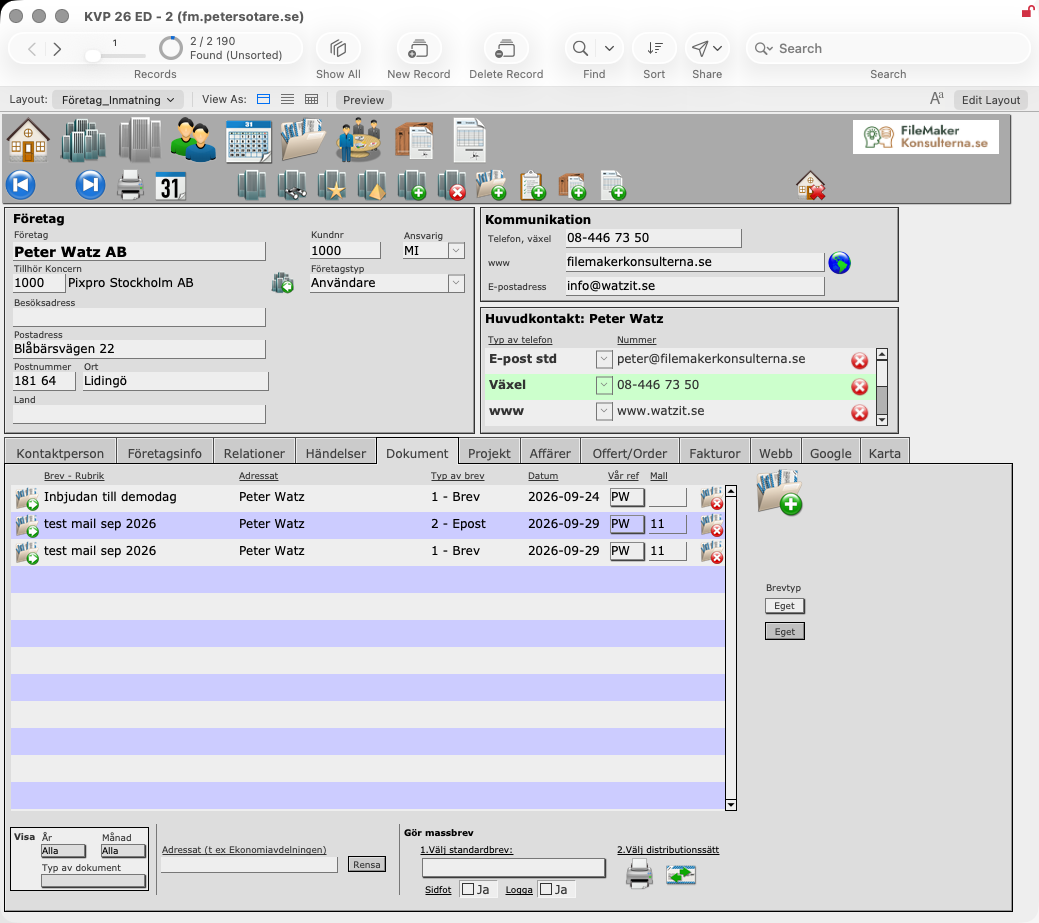
Dokument (Documents)
All documents and correspondence with any of the company's contact persons.
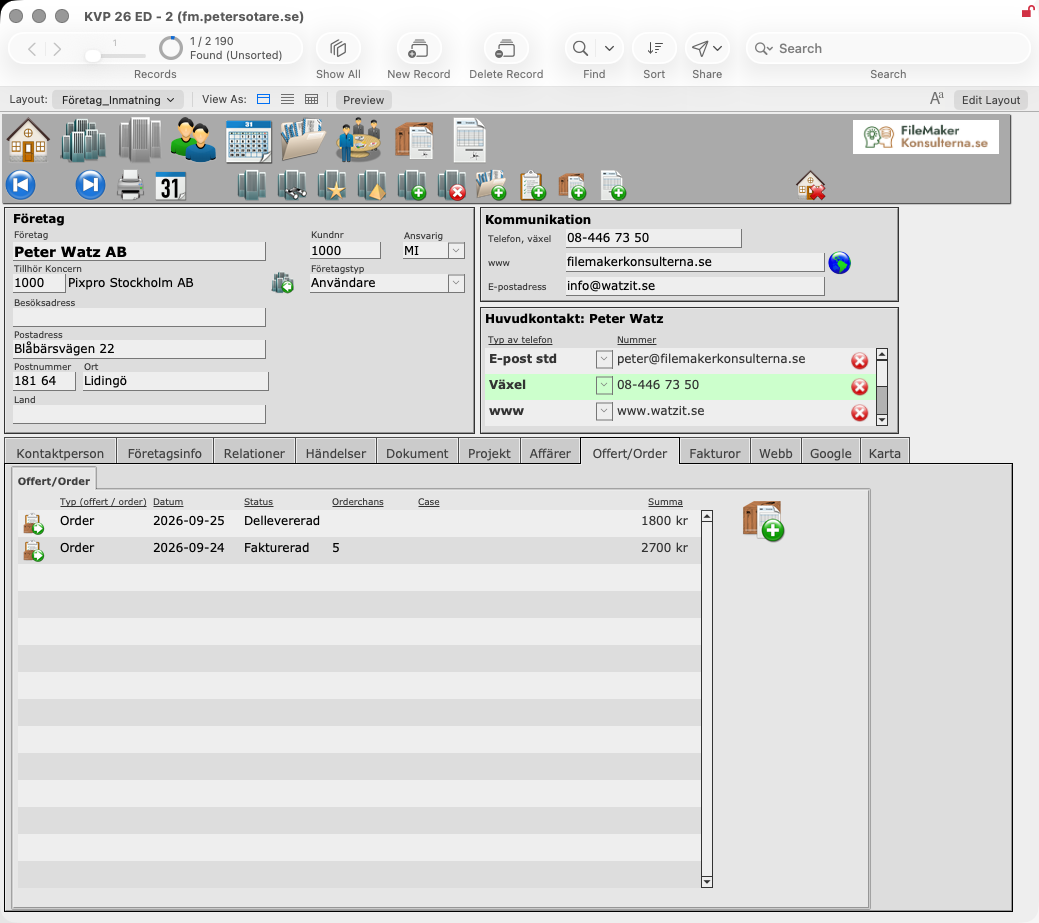
Offert/Order (Quotes/Orders)
Write quotes and orders to the company.
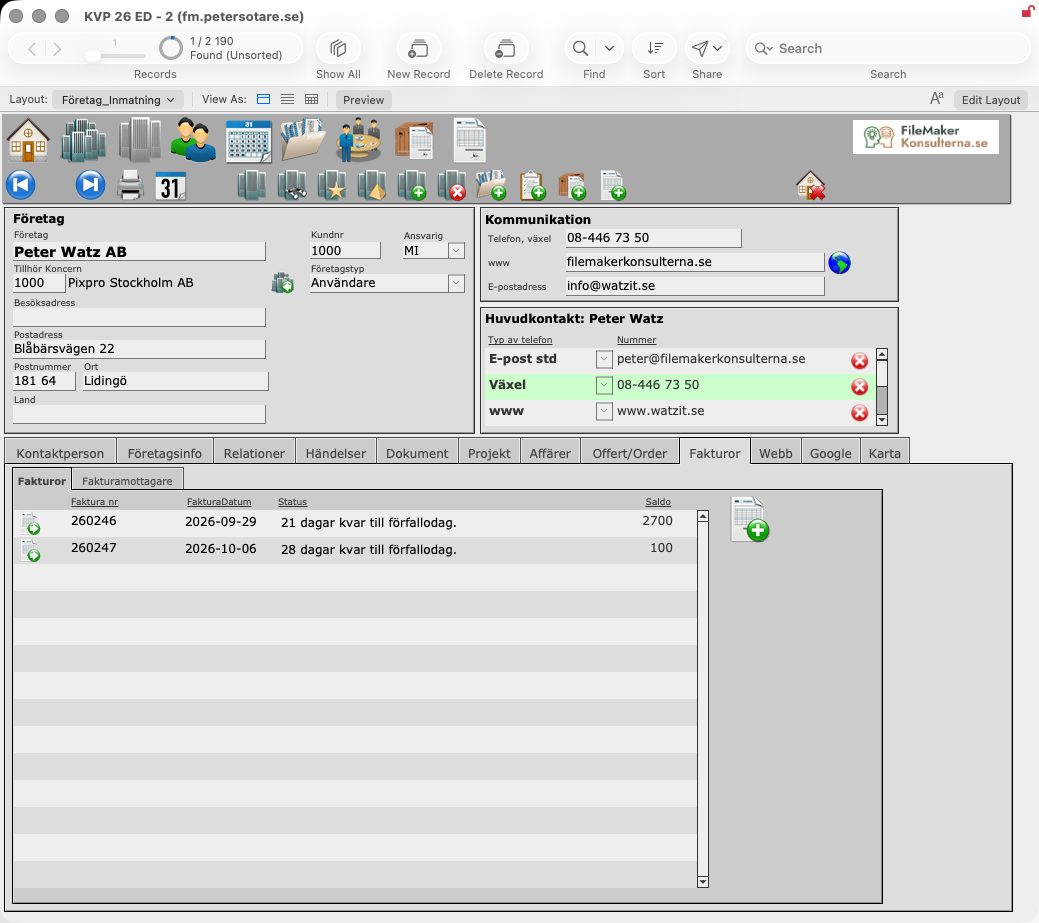
Fakturor (Invoices)
An overview of the invoices sent to the company.
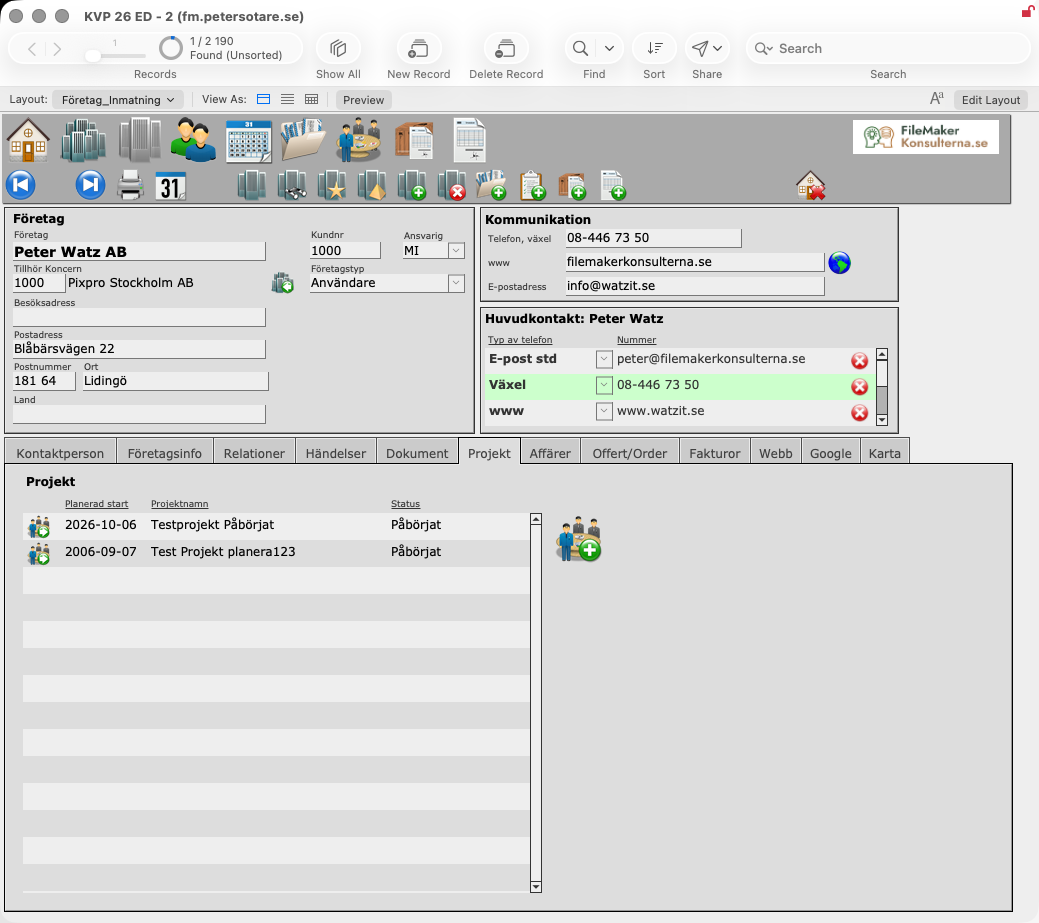
Projekt (Projects)
The projects we have with the company.
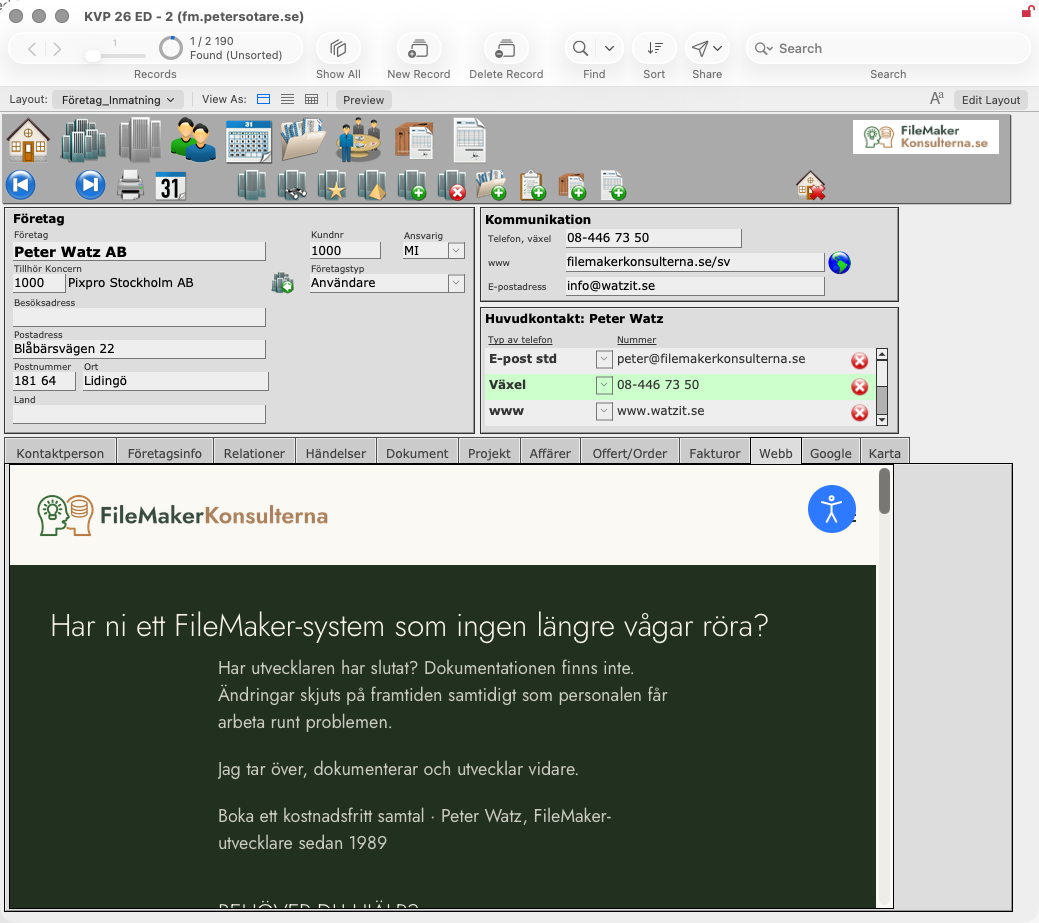
Webb (Web)
Shows the company's website.
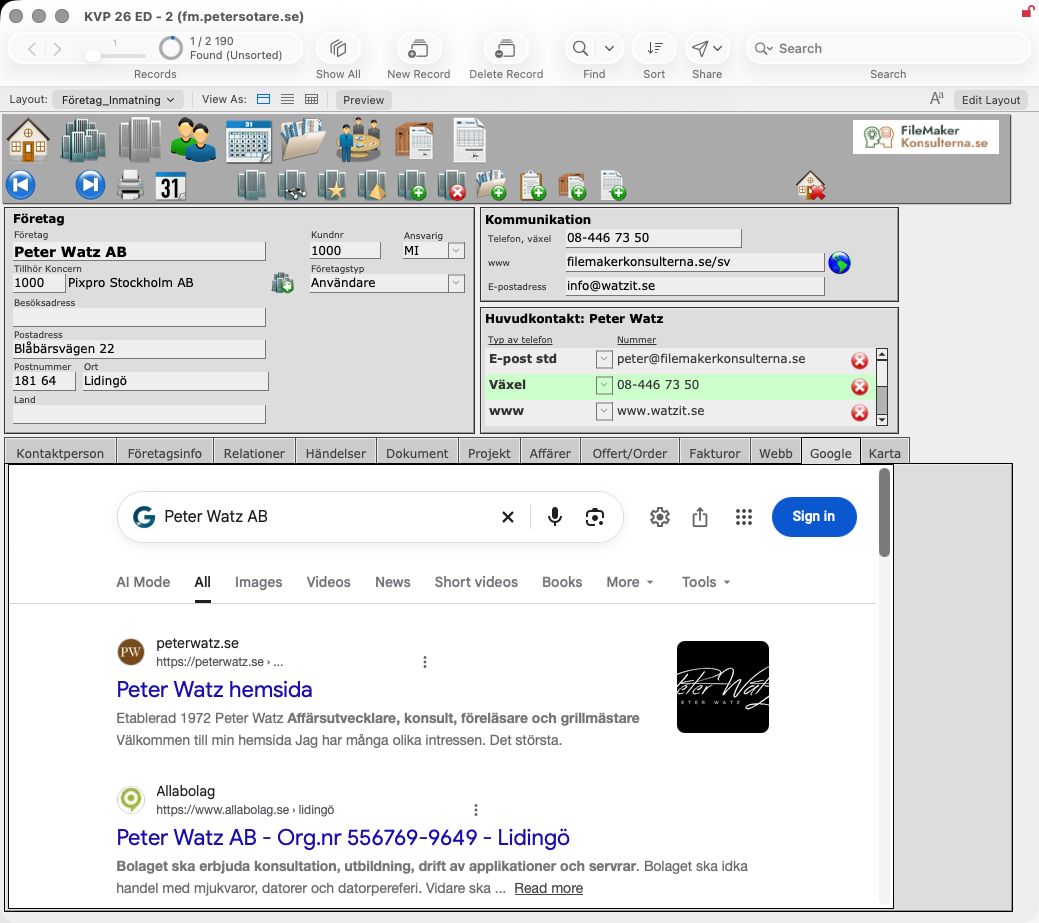
Google
A Google search on the company name.
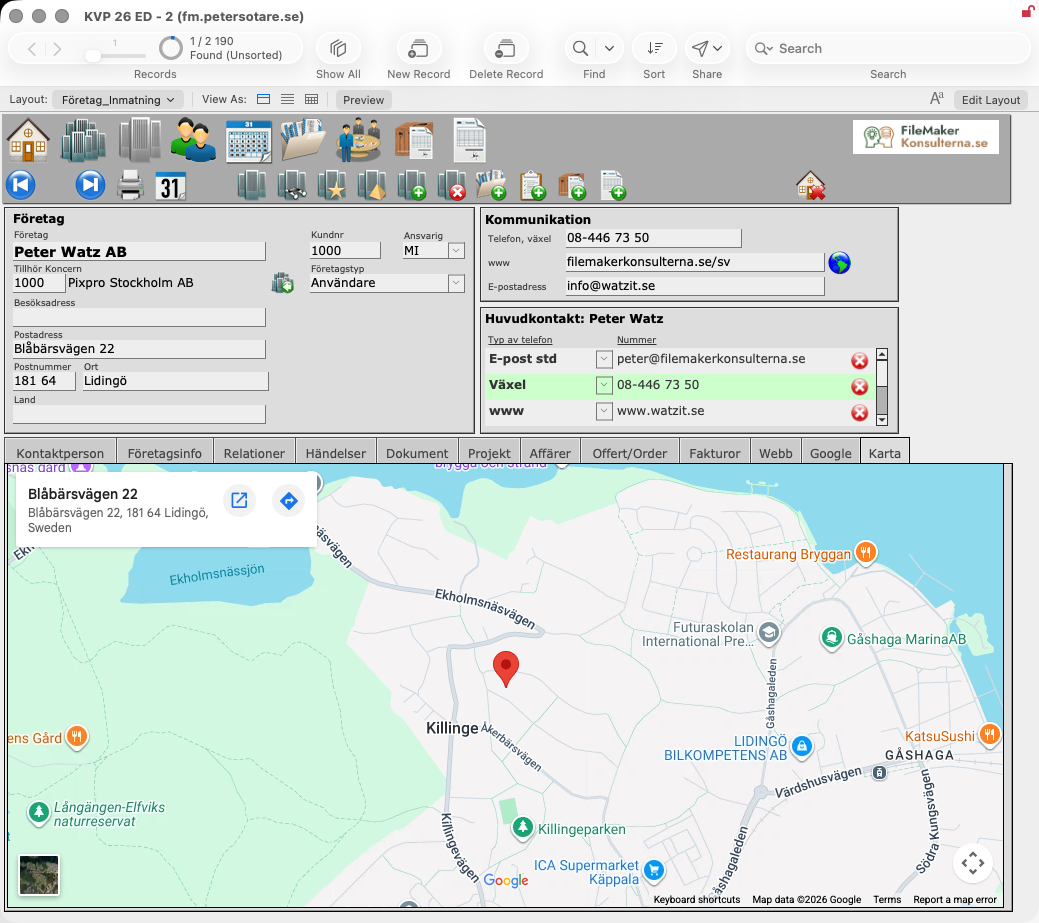
Karta (Map)
Shows where the company is located on Google Maps.
Personkort (Person card)
This is where most of the work happens. Already in 1989 I put the person at the centre: when I meet or call a company, I am always talking to a person. In KVP, everything revolves around the person.
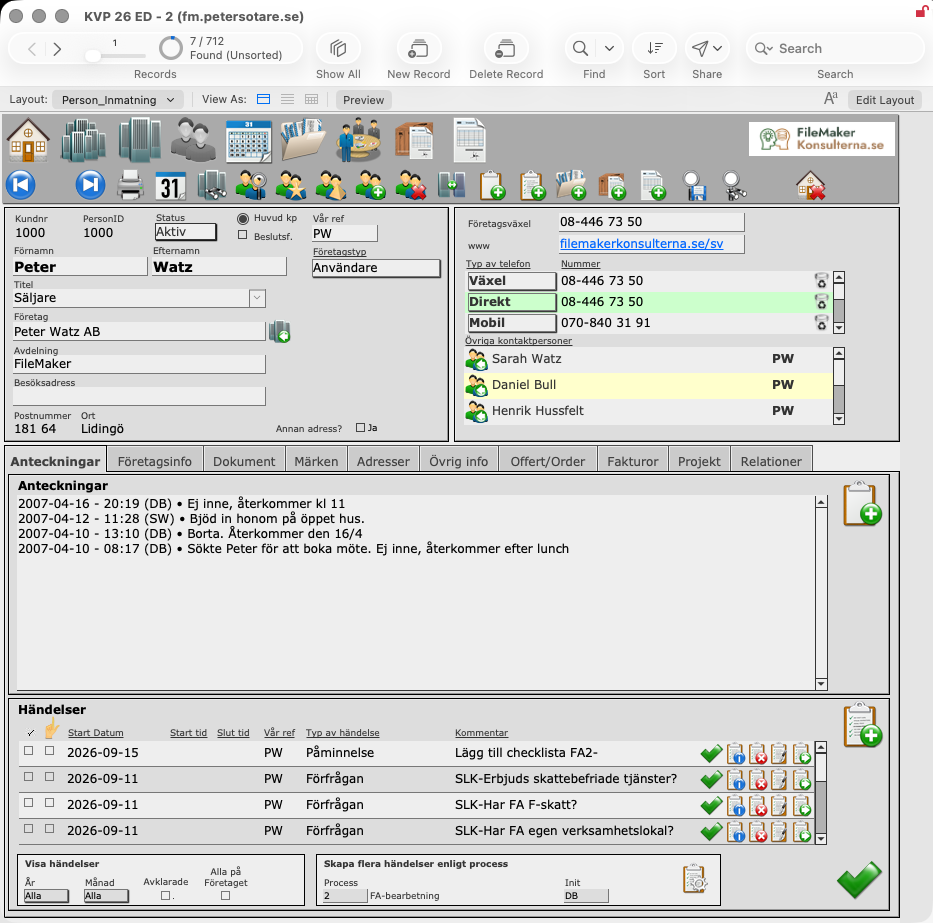
Anteckningar (Notes)
- Anteckningar (Notes): the history of what I have noted about the person.
- Händelser (Events): what I am going to do and when — a meeting, writing a quote, an email, a phone call and so on.
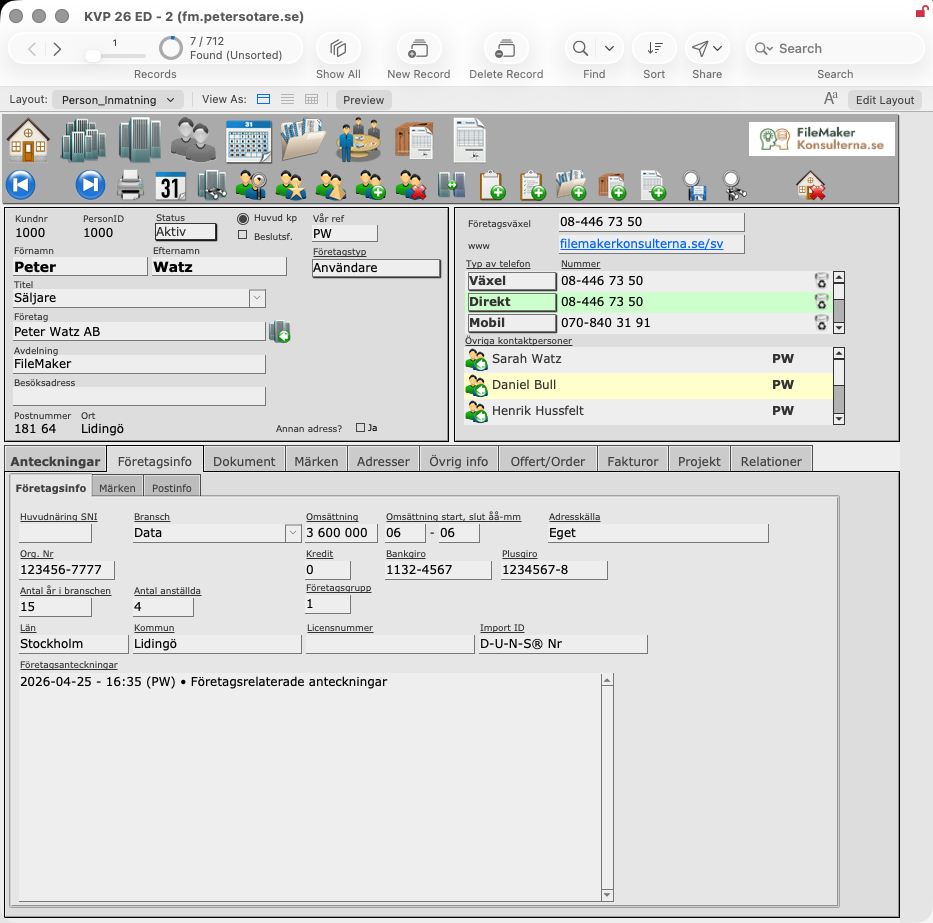
Företagsinfo (Company info)
More information about the company, without leaving the person card.
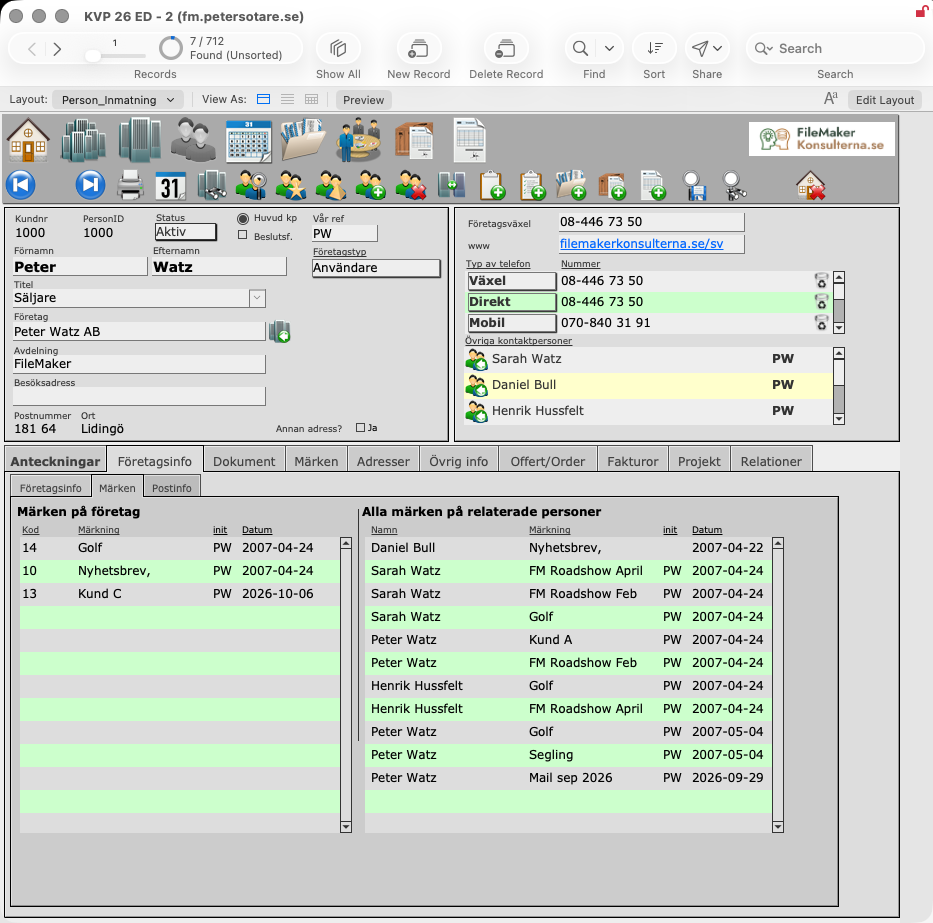
- The sub-tab Märken (Tags) shows the tags on the company and on every person connected to it. This gives a quick overview of the company's other contact persons.
- The sub-tab Postinfo (Record info) shows when the company record was created and last changed, and by whom.
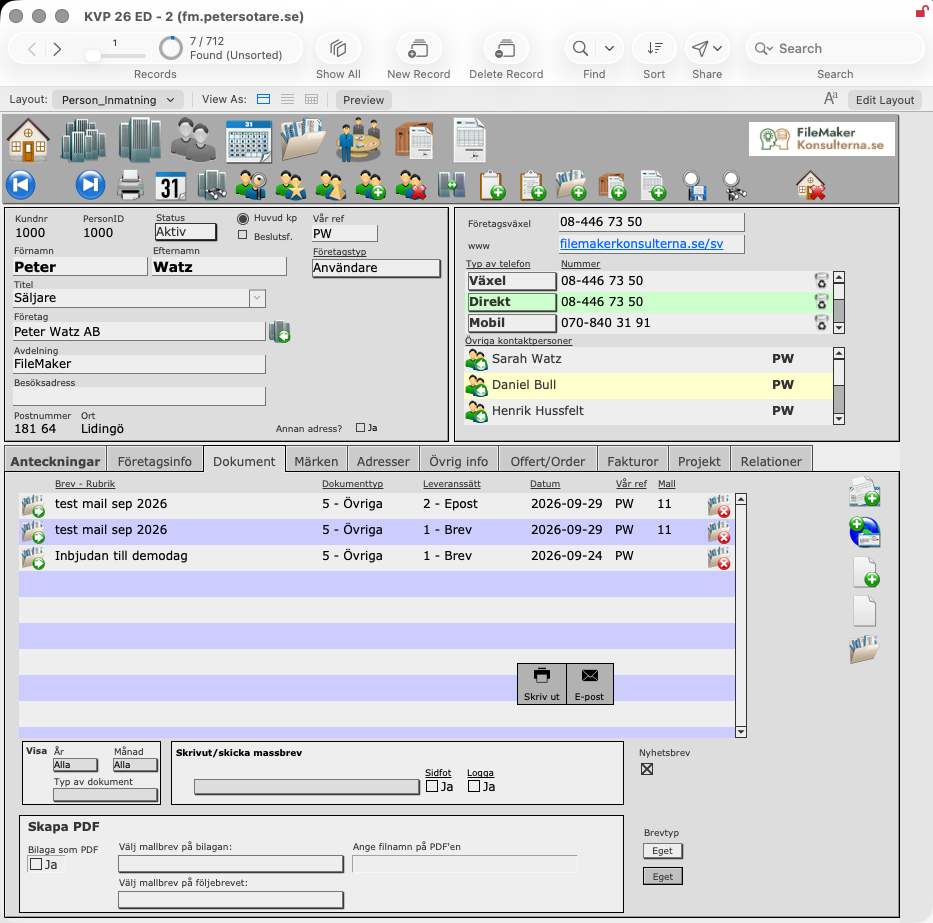
Dokument (Documents)
Write correspondence, and choose whether to print it or send it by email.
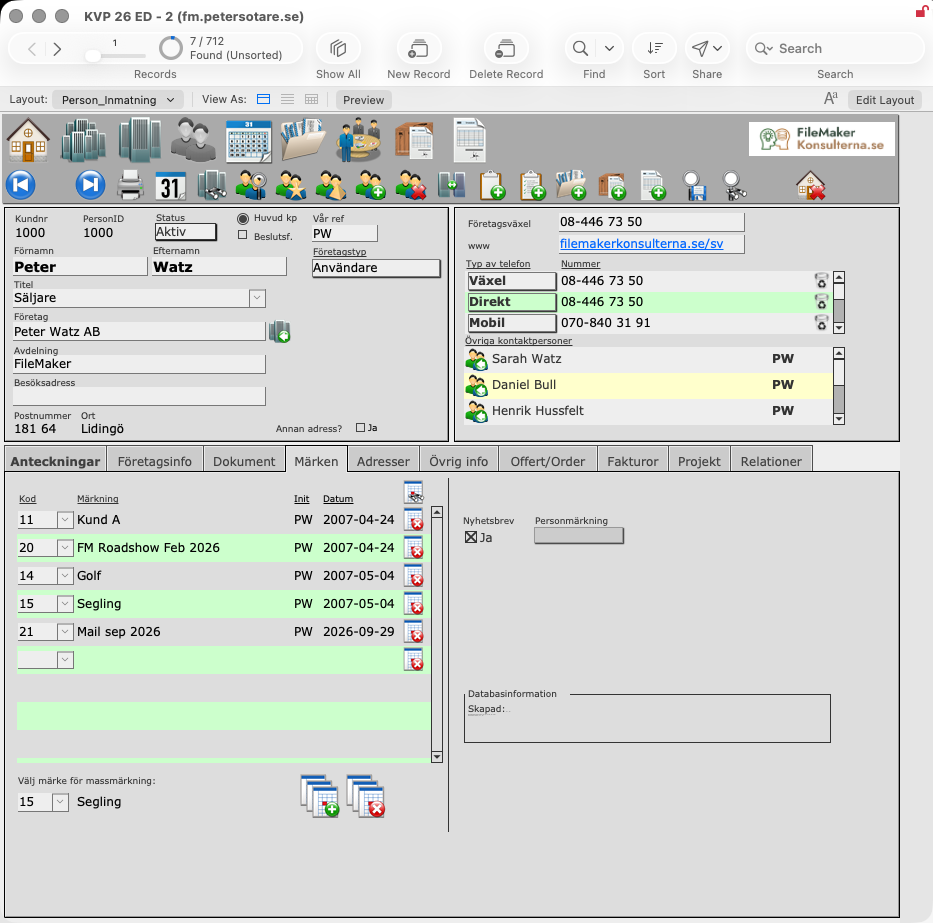
Märken (Tags)
Categorise the person with one or more tags — for example interests, the fair or conference where we met, or what we think the person is interested in.
You can find every person who has a given tag and work with them further, for example by sending them a mass email.
- Massmärke (Mass tag): choose a tag and give it to every person in the current found set in one go, or remove it from all of them.
- Nyhetsbrev (Newsletter): whether the person receives the newsletter.
- Personmärkning (Person marking): a classification of the person.
Adresser (Addresses)
A person can have an address other than the company's. Just look at Rick Kalman 😉
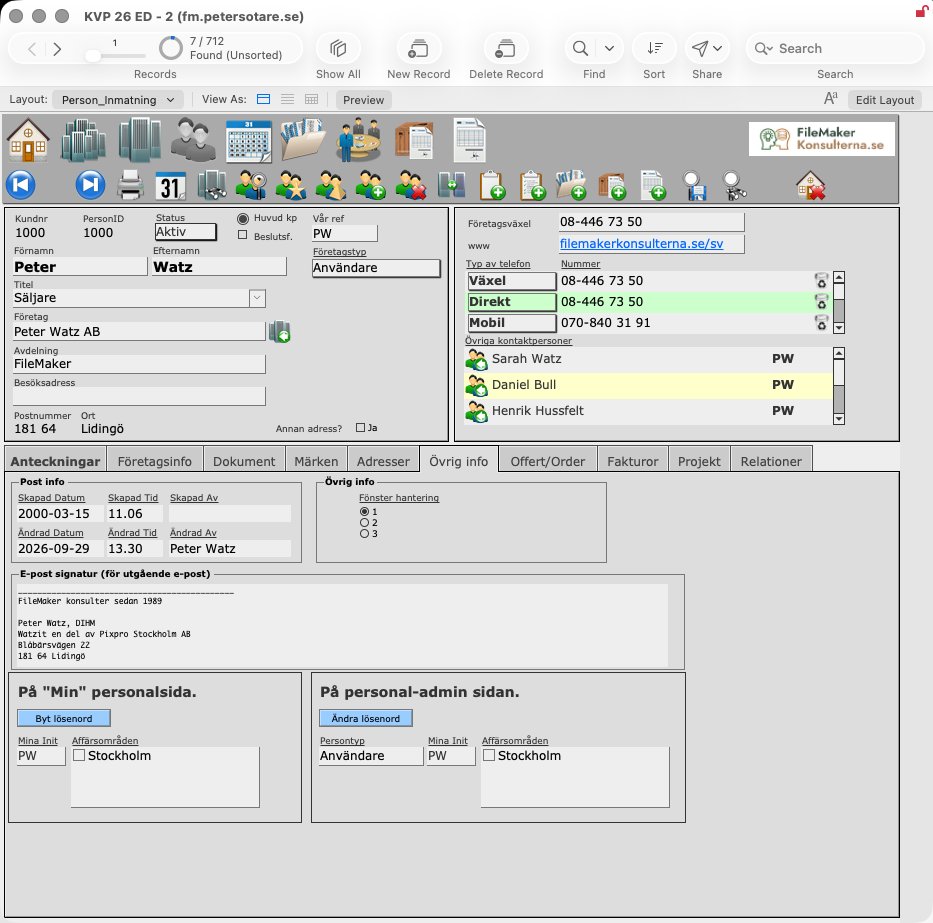
Övrig info (Other info)
- When the person record was created and last modified: date, time and by whom.
- Information shown only for persons who are also users of the system (see PersonID 1000):
- window handling when navigating, that is, how the FileMaker window should be shown;
- the email signature;
- change password.
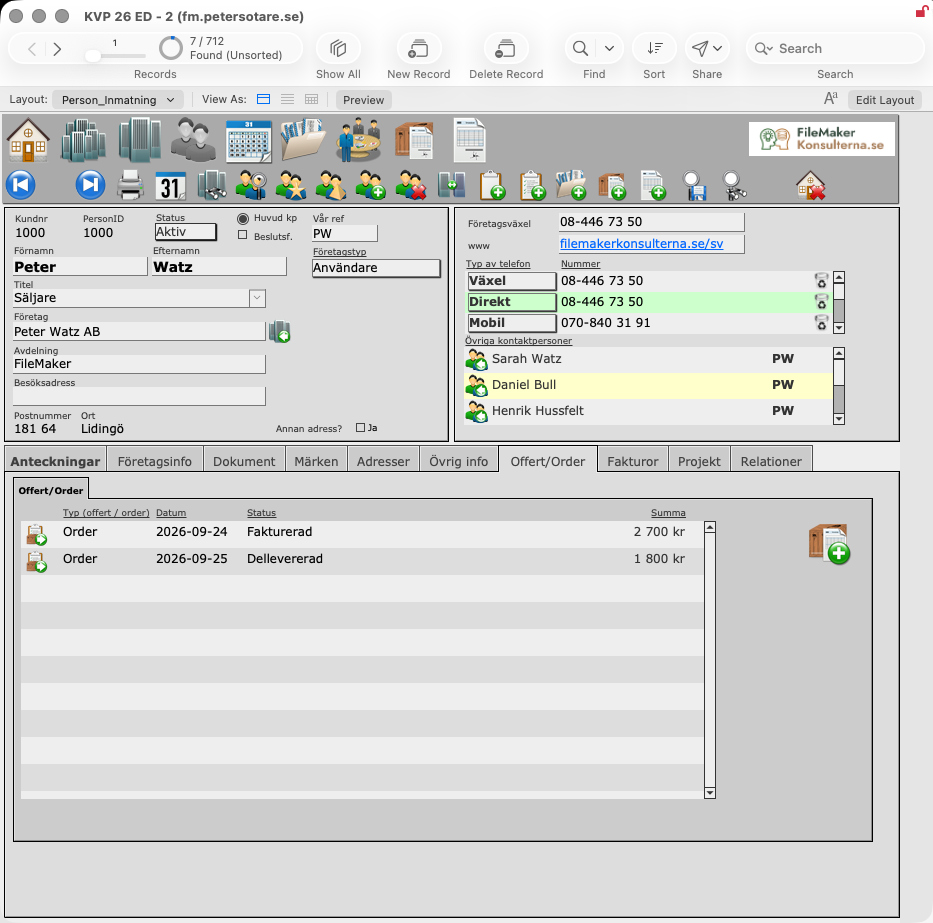
Offert/Order (Quotes/Orders)
All quotes and orders written to this contact person. New quotes and orders are created here.
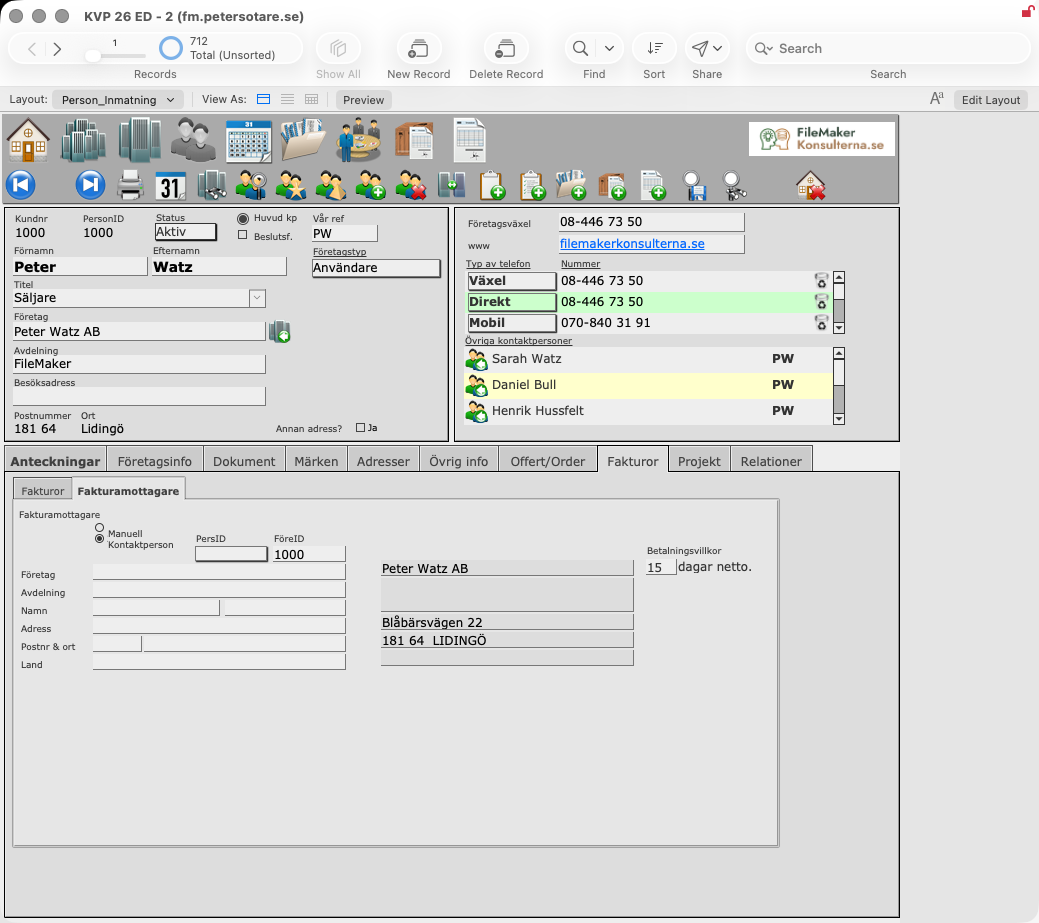
Fakturor (Invoices)
All invoices created for this contact person. A direct invoice, one that is not based on an order, is created here.
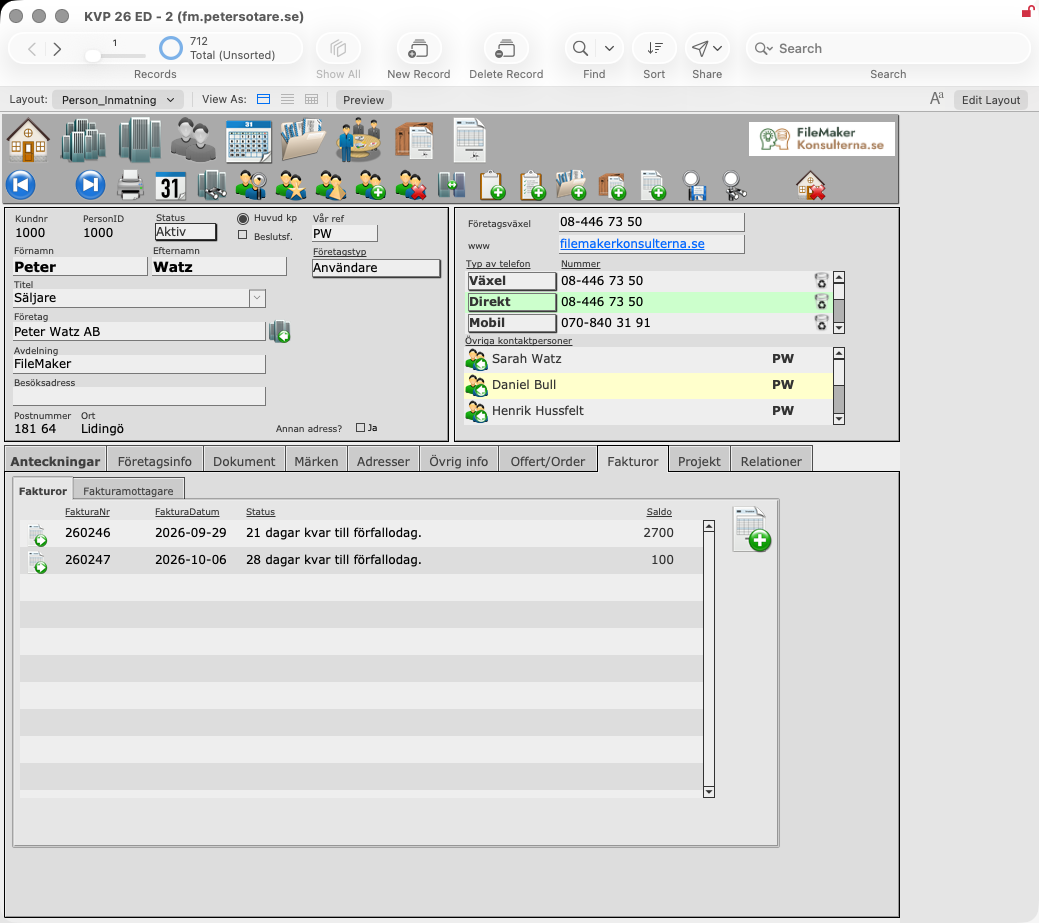
- The sub-tab Fakturamottagare (Invoice recipient) lets you enter an alternative recipient for invoices.
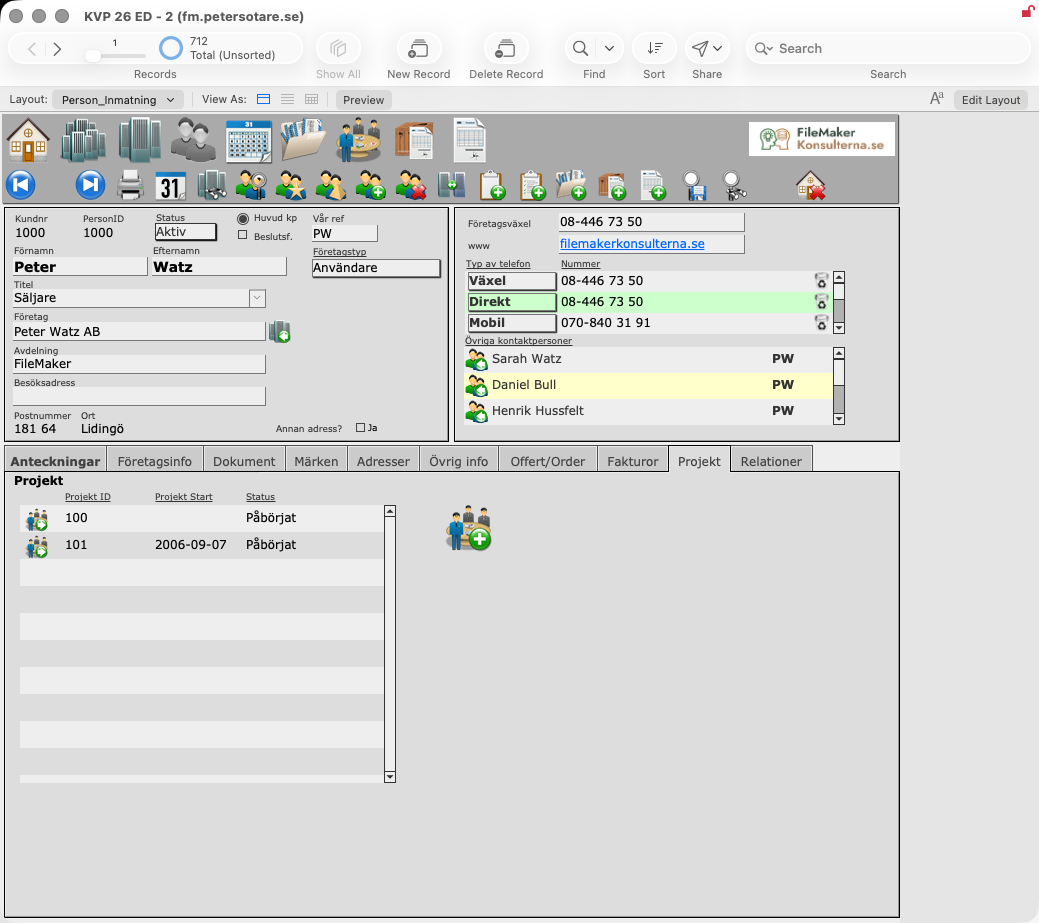
Projekt (Projects)
All projects the person is involved in. New projects can be created here.
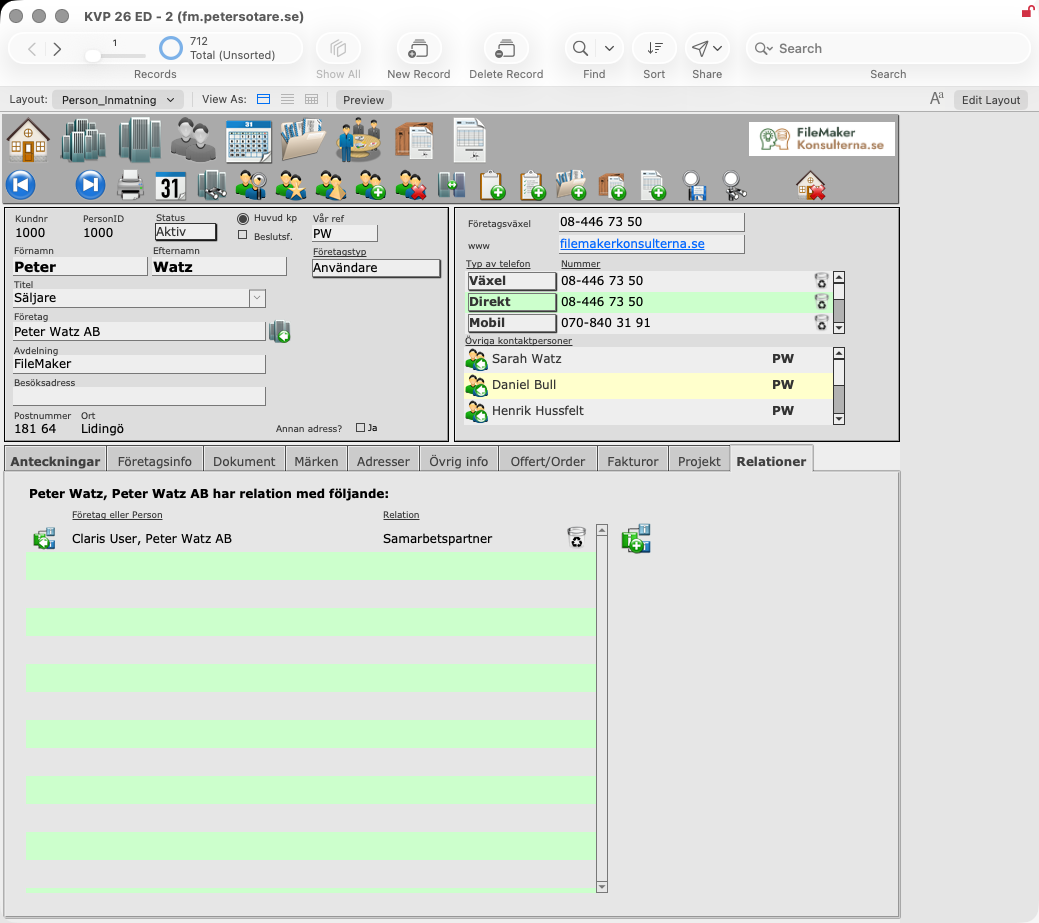
Relationer (Relationships)
Shows relationships between:
- company and company, for example customer and supplier (see customer number 1000);
- company and person, for example employer and employee (see customer number 2566);
- person and person (see PersonID 8016).
Importguiden (Import guide)
The import guide brings new companies and persons into KVP from an external list, for example a purchased address list, without creating duplicates. Open it with the Importera (Import) button on the start menu.
The list is first imported into KVP's import table with FileMaker's own import. The guide then shows one imported row at a time. The left column, Från Importen (From the import), shows the imported values. The right column, I KVP (In KVP), shows the company and person in KVP.
- Find the company. KVP lists companies in KVP whose name matches the imported one, with Antal matchade företag (Number of matching companies). Choose how closely to match: the first 3 or the first 15 characters. Click Välj (Choose) on the right company. If the company is not in KVP, create a new one with a button.
- Find the person. The persons at the chosen company are listed in the same way, with Antal matchade personer (Number of matching persons). Choose one, or create a new person. A person can also be registered without a company, as a private person.
- Transfer the values. Each imported value has a button that copies it into the matching field in KVP: organisation type, address, postcode, town, visiting address, company email, telephone, title and the company ID from the supplier PAR. You decide value by value what to overwrite.
- Tag the person. Under Märkning/aktivitet (Tag/activity), give the person tags, for example the campaign the list came from.
Buttons take you to the chosen company or person, and Rensa (Clear) clears the choices so that you can start over.
Projekt (Project)
A project collects the people, events, documents, orders and invoices that belong to one assignment for a customer. Projekt_Lista lists all projects by ProjektID and ProjektNamn. Open one to see its project card.
The top of the project card shows the project's main information:
- Projekt Nr (Project number) and Projekt Namn (Project name).
- Projektansvarig (Project manager), chosen from our own staff.
- Beställare (Client): the person who ordered the project and that person's company with address. Arrow buttons take you to the person card or the company card.
- Förväntad projektstart and Förväntad projektslut (Expected start and end date).
- Projektstatus (Project status): Planerat (Planned), Påbörjat (Started) or Slutfört (Completed). KVP records the date the status is set.
The tabs below hold the rest.
Inmatning (Entry)
Projektbeskrivning (Project description): a free-text description of the project.
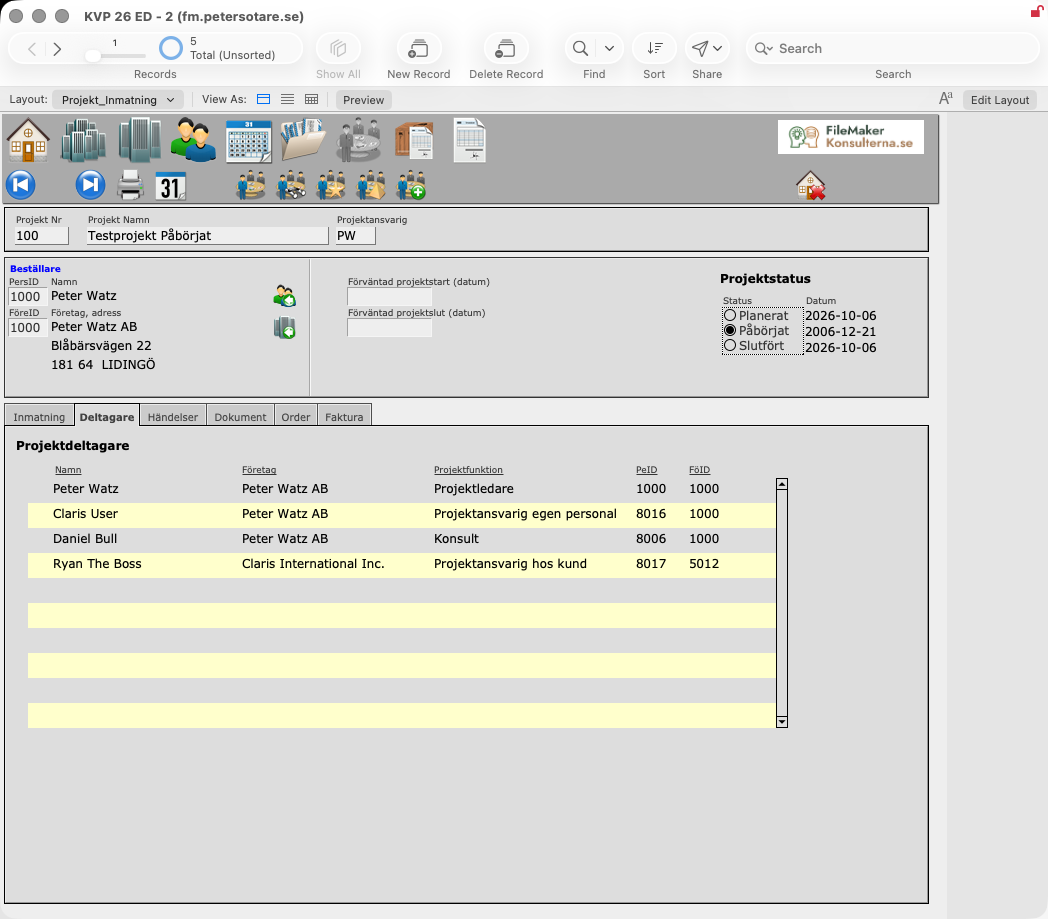
Deltagare (Participants)
Everyone who takes part in the project, at the customer's side or ours, with name, company and Projektfunktion (Project role). The roles are Beställare (Client), Projektledare (Project leader), Projektansvarig hos kund (Customer's project manager), Projektansvarig egen personal (Our project manager), Konsult (Consultant), Underkonsult (Subconsultant) and Säljare (Salesperson).
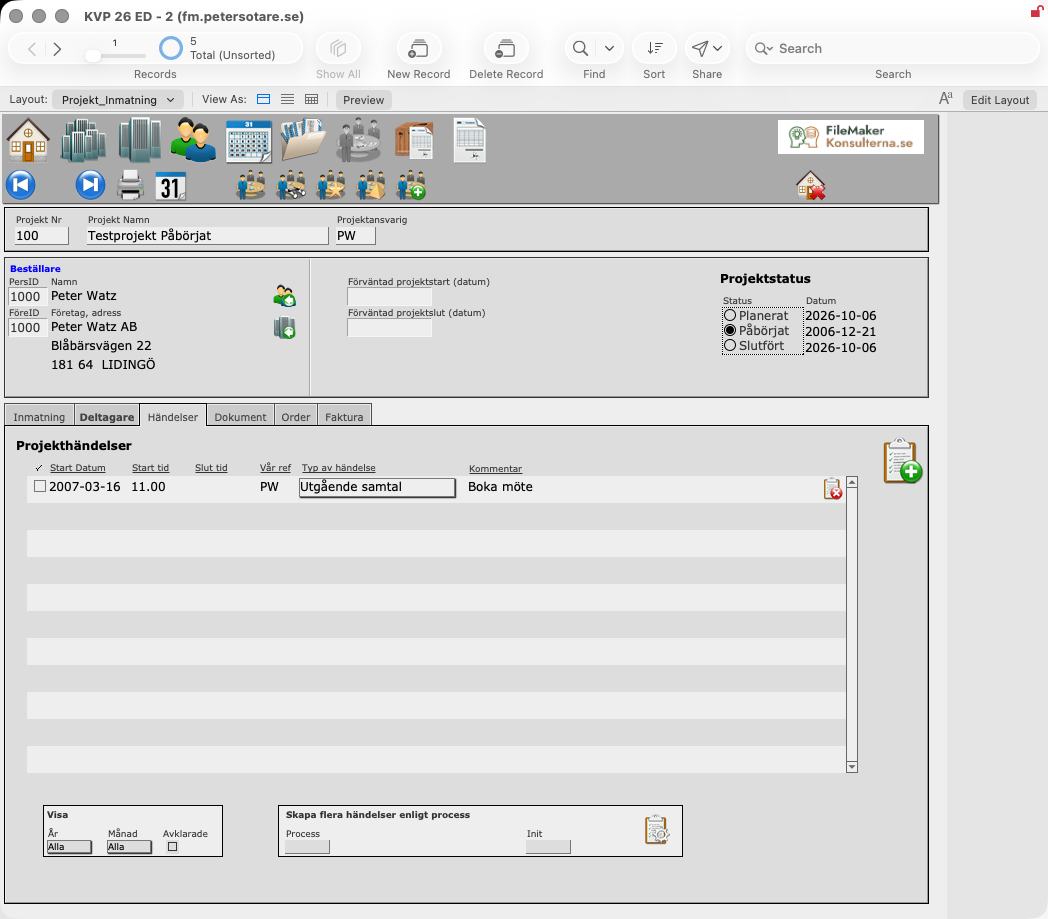
Händelser (Events)
Projekthändelser (Project events): the events linked to the project, with start date and time, end time, Vår ref (Our reference), Typ av händelse (Event type) and a comment.
- The button at the top right creates a new event. It is linked to the project as well as to the client and the client's company, so it also appears on their cards.
- Visa (Show) filters the list by År (Year), Månad (Month) and Avklarade (Completed).
- Skapa flera händelser enligt process (Create several events from a process) creates a whole series of events in one go from a predefined Process, assigned to the person chosen under Init (Initials).
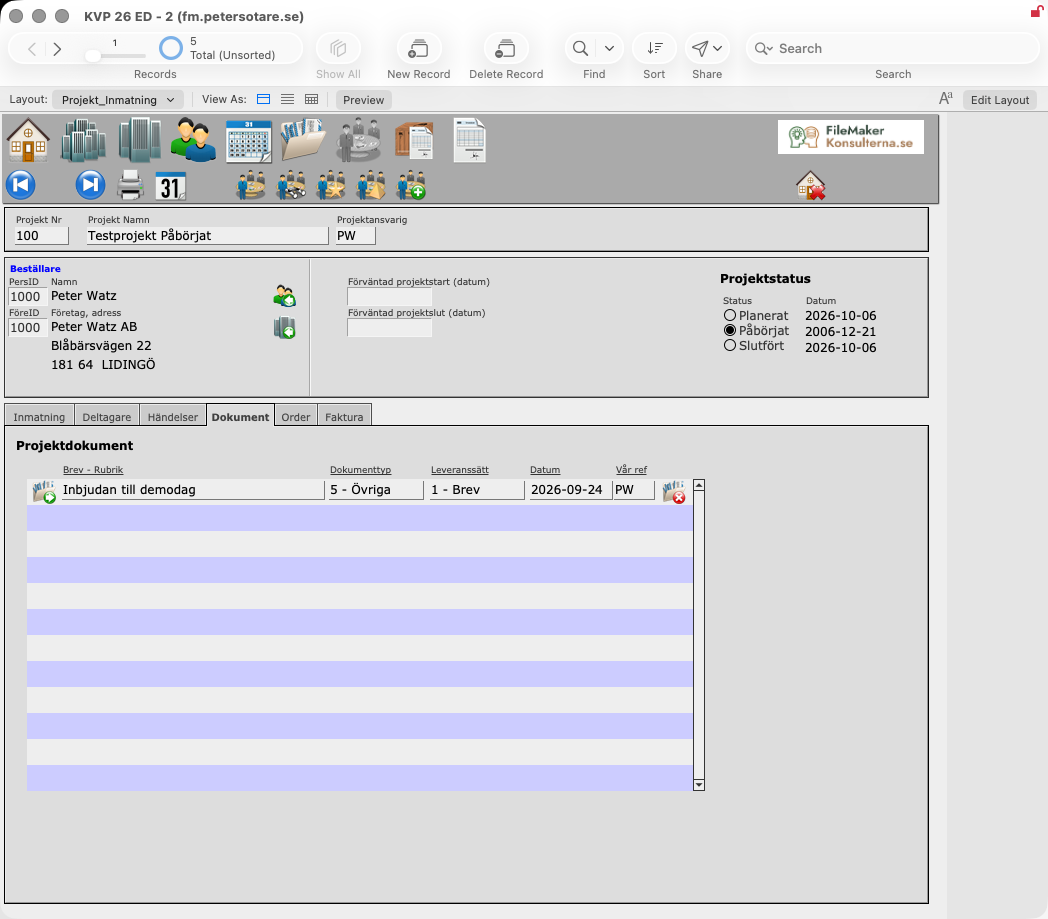
Dokument (Documents)
Letters, emails and other documents connected to the project, with Rubrik (Subject), Dokumenttyp (Document type), Leveranssätt (Delivery method), date and Vår ref. Open a document from its row.
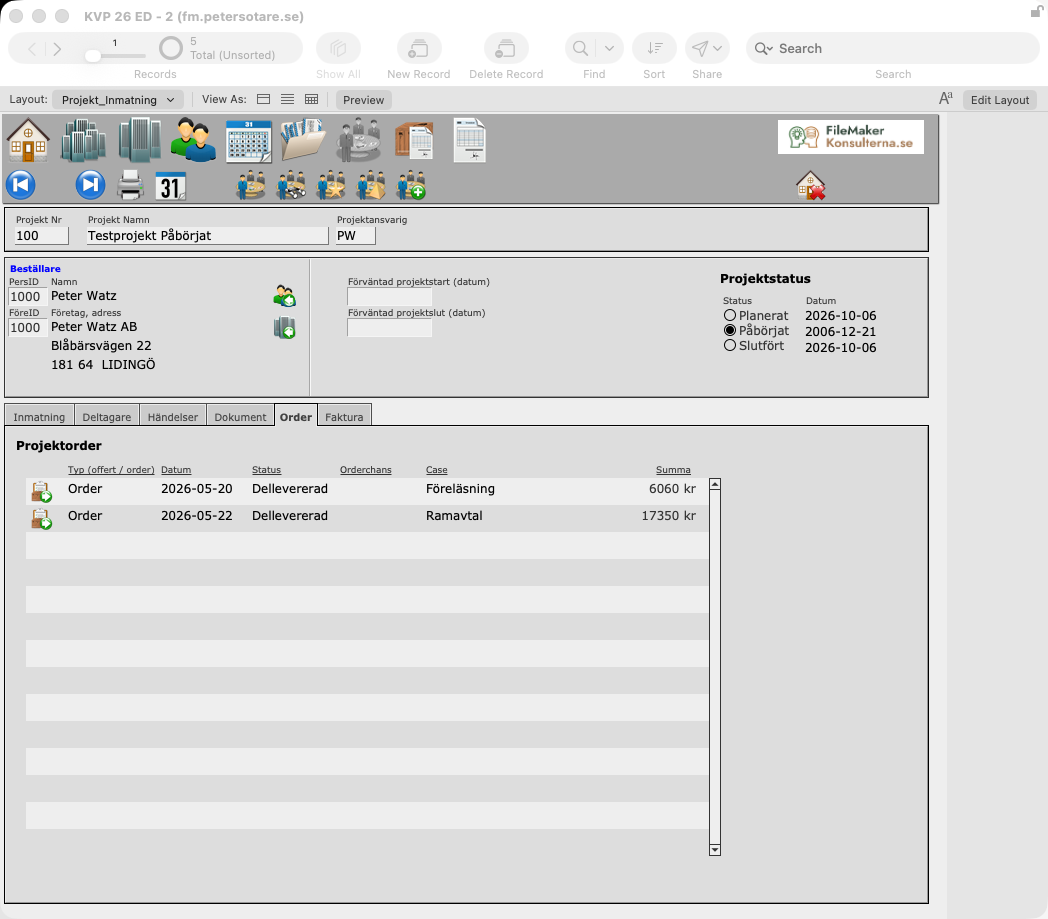
Order
Quotes and orders connected to the project: Typ (quote or order), date, status, Orderchans (Order probability, 1–5), a description and Summa (Total). Open an order from its row.
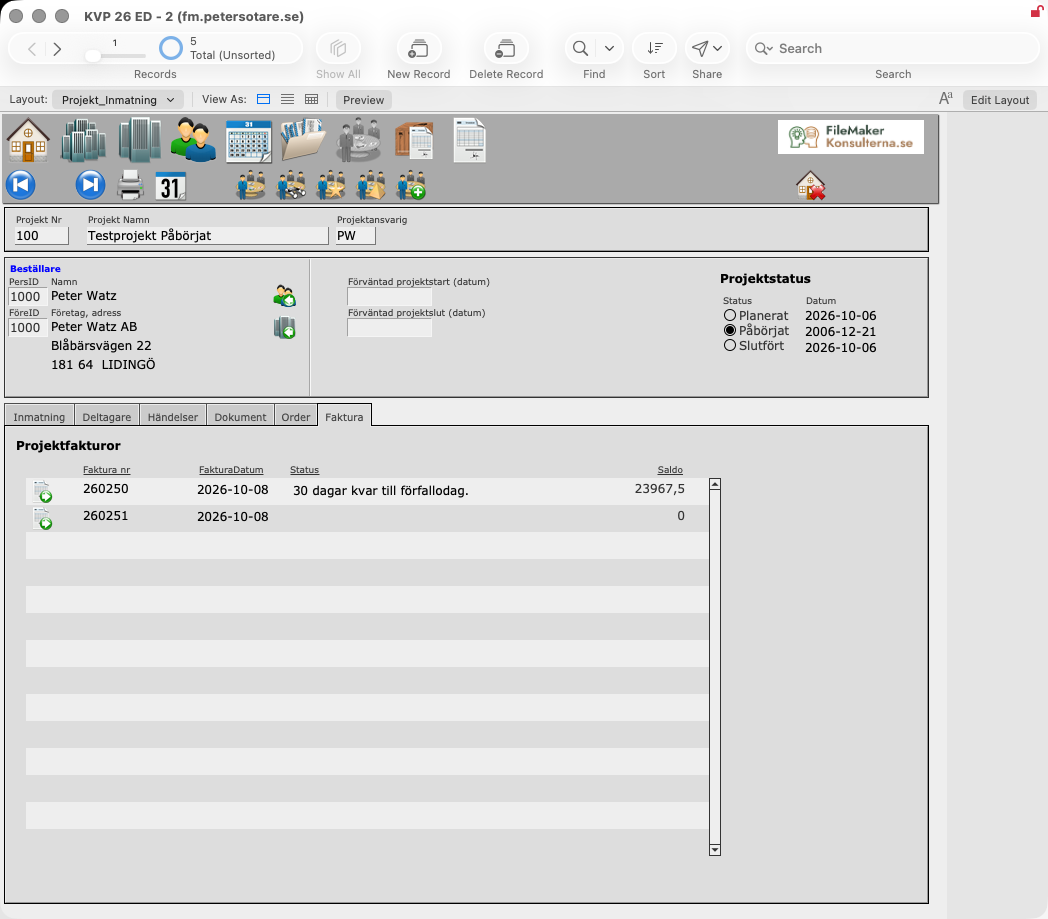
Faktura (Invoices)
Invoices for the project: Faktura nr (Invoice number), FakturaDatum (Invoice date), status and Saldo (Balance outstanding). Open an invoice from its row.
Offert / Order (Quotes and orders)
Quotes and orders are the same kind of record: an order whose Typ av order (Order type) is Offert (Quote), Order or Produktion (Production). A quote becomes an order with one click, and order rows go on to invoicing through the invoice queue.
Order_Lista lists all orders with Ordernr. (Order number), Orderdatum (Order date), Företag (Company), Orderstatus (Order status) and Ordersumma (Order total). Click a column heading to sort by it. The order status is calculated from the order rows:
- Olevererad (Not delivered): no rows are approved for invoicing yet.
- Dellevererad (Partly delivered): some rows are approved.
- Levererad - ej fakt (Delivered, not invoiced): all rows are approved, but not all are invoiced.
- Fakturerad (Invoiced): all rows are invoiced.
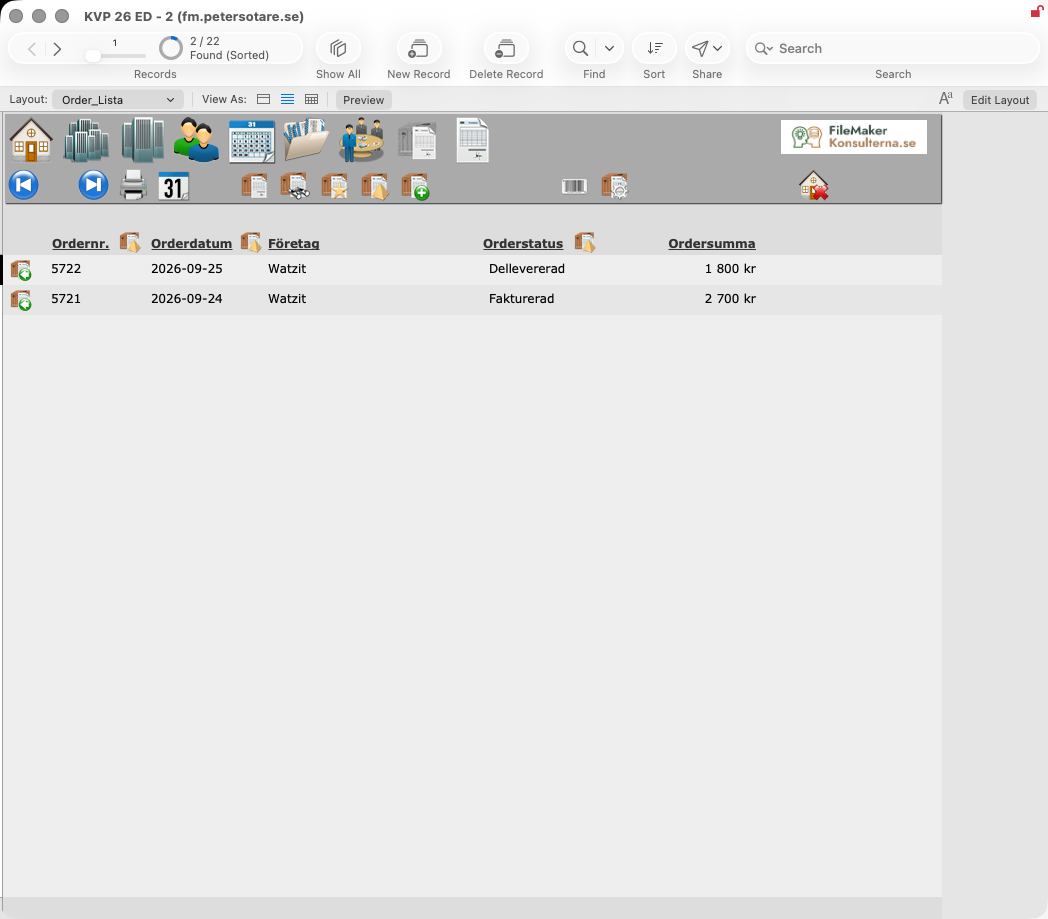
New orders are usually created from the person card (Offert/Order tab), so the customer is filled in from the start.
The order card
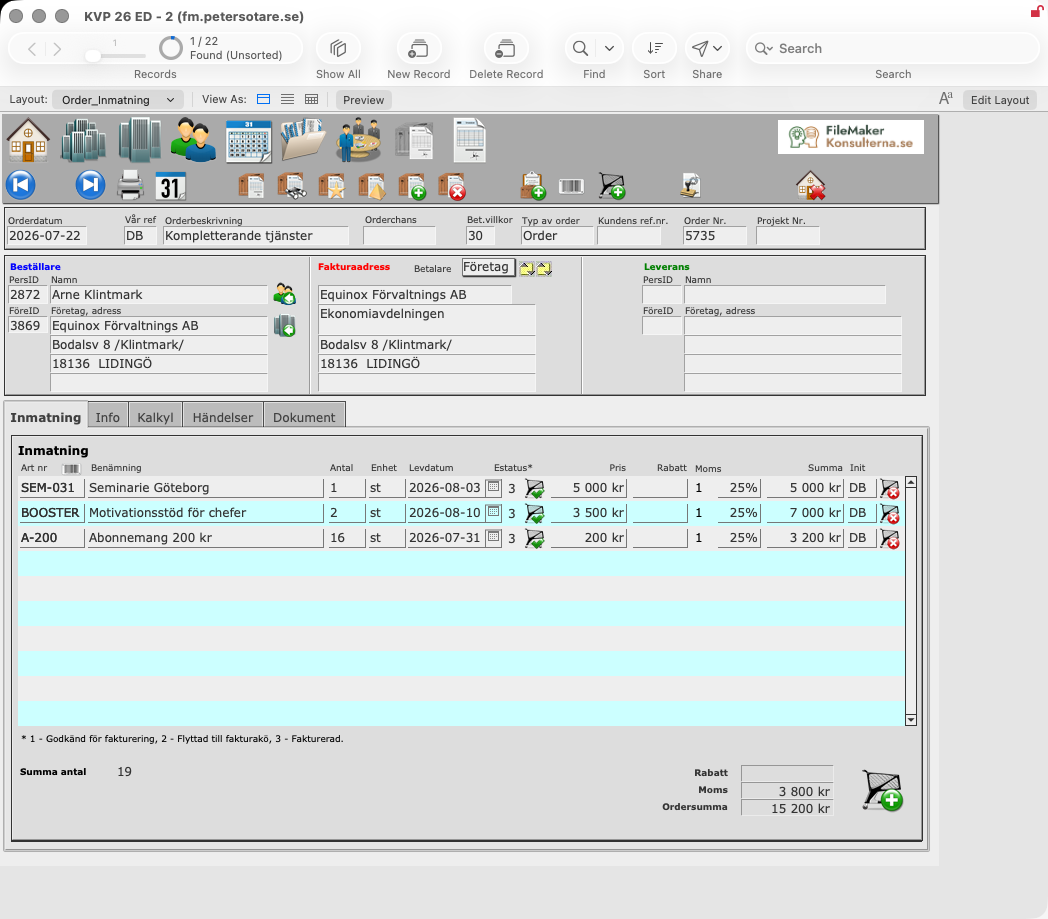
The top of the order card holds:
- Order Nr., Orderdatum, Typ av order and Projekt Nr. (Project number), which links the order to an ongoing project.
- Vår ref (Our reference), Kundens ref.nr. (Customer's reference number), Orderbeskrivning (Order description), Orderchans (Order probability, 1–5) and Bet.villkor (Payment terms, in days).
- The button next to the order type turns a quote into an order.
- Three addresses side by side: Beställare (Customer, the person and company that placed the order), Fakturaadress (Invoice address) and Leverans (Delivery address). Betalare (Payer) chooses whether the company or the person pays, and a button updates the invoice address from it.
Inmatning (Entry)
The order rows: Art nr (Article number), Benämning (Description), Antal (Quantity), Enhet (Unit), Levdatum (Delivery date), price, discount, VAT, total and Init (Initials).
- Estatus shows where each row is on its way to an invoice: 1 – approved for invoicing, 2 – moved to the invoice queue, 3 – invoiced.
- The arrow on a row sends the approved rows to the invoice queue.
- The totals show Summa antal (Total quantity), discount, VAT and Ordersumma (Order total).
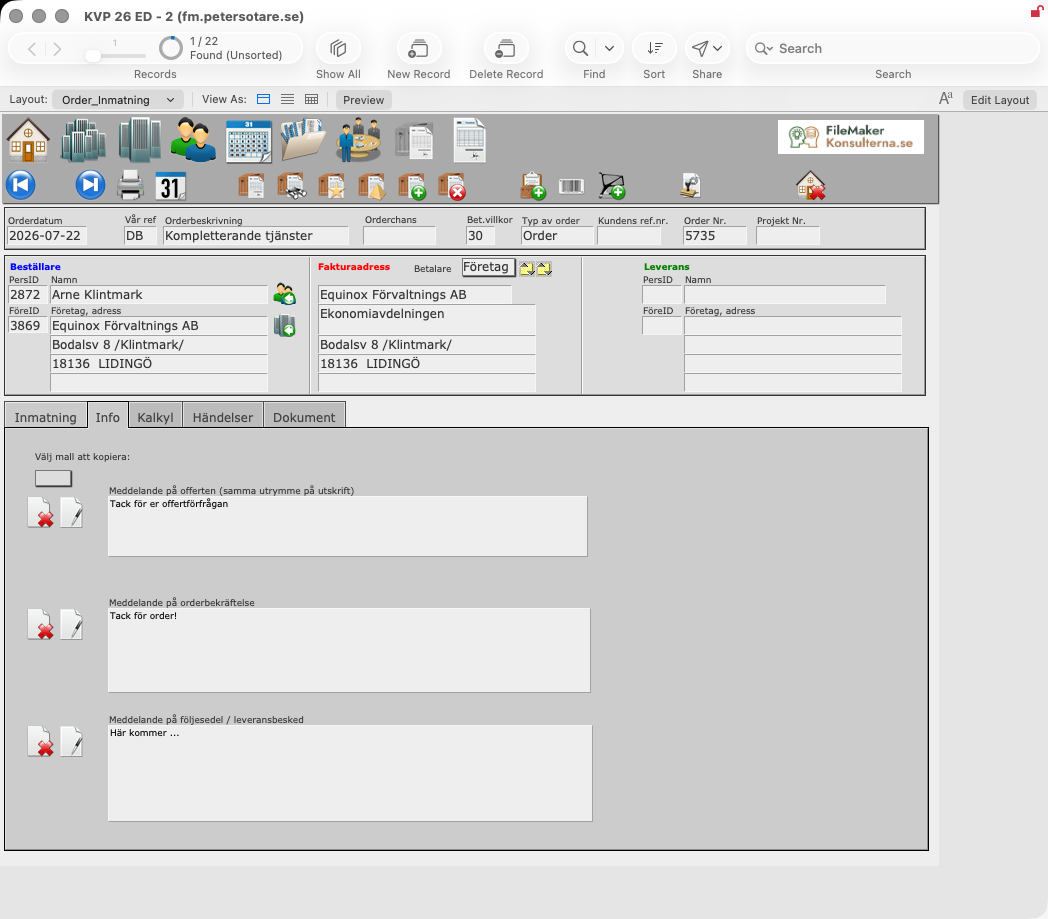
Info
Texts printed on the documents:
- Meddelande på offerten (Message on the quote),
- Meddelande på orderbekräftelse (Message on the order confirmation) and
- Meddelande på följesedel / leveransbesked (Message on the delivery note).
Each text can be copied from a letter template (Välj mall att kopiera, Choose template to copy) or cleared with a button.
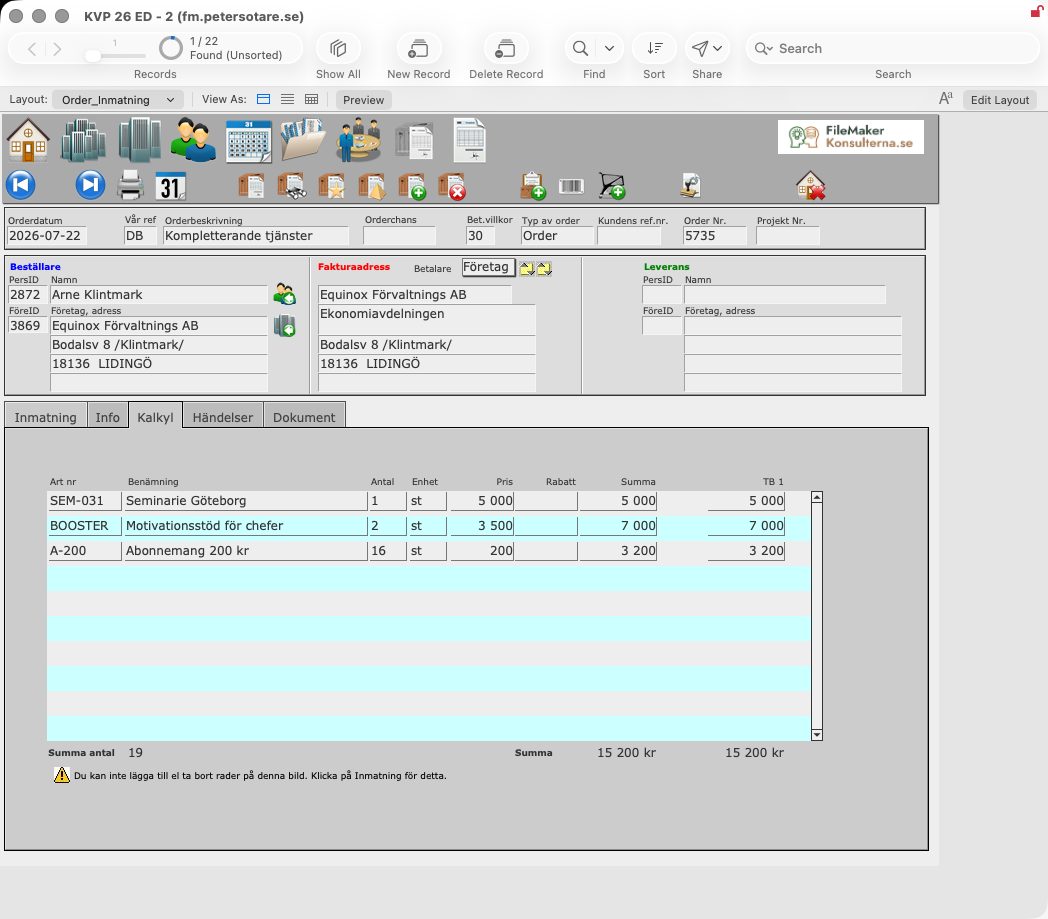
Kalkyl (Calculation)
The same rows with TB 1 (contribution margin) per row and for the whole order. Rows cannot be added or removed here.
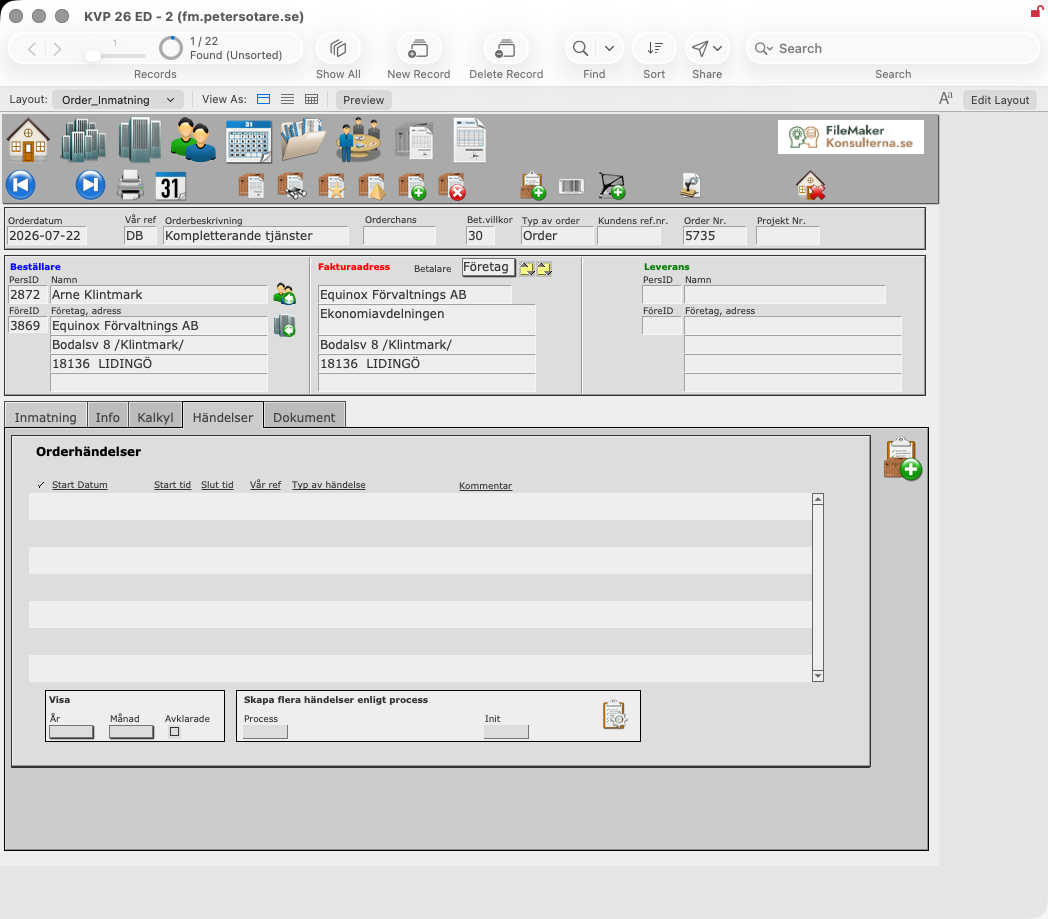
Händelser (Events)
Orderhändelser (Order events), with the same filters and process button as on the project card. A new event is linked to the order, the customer and the company.
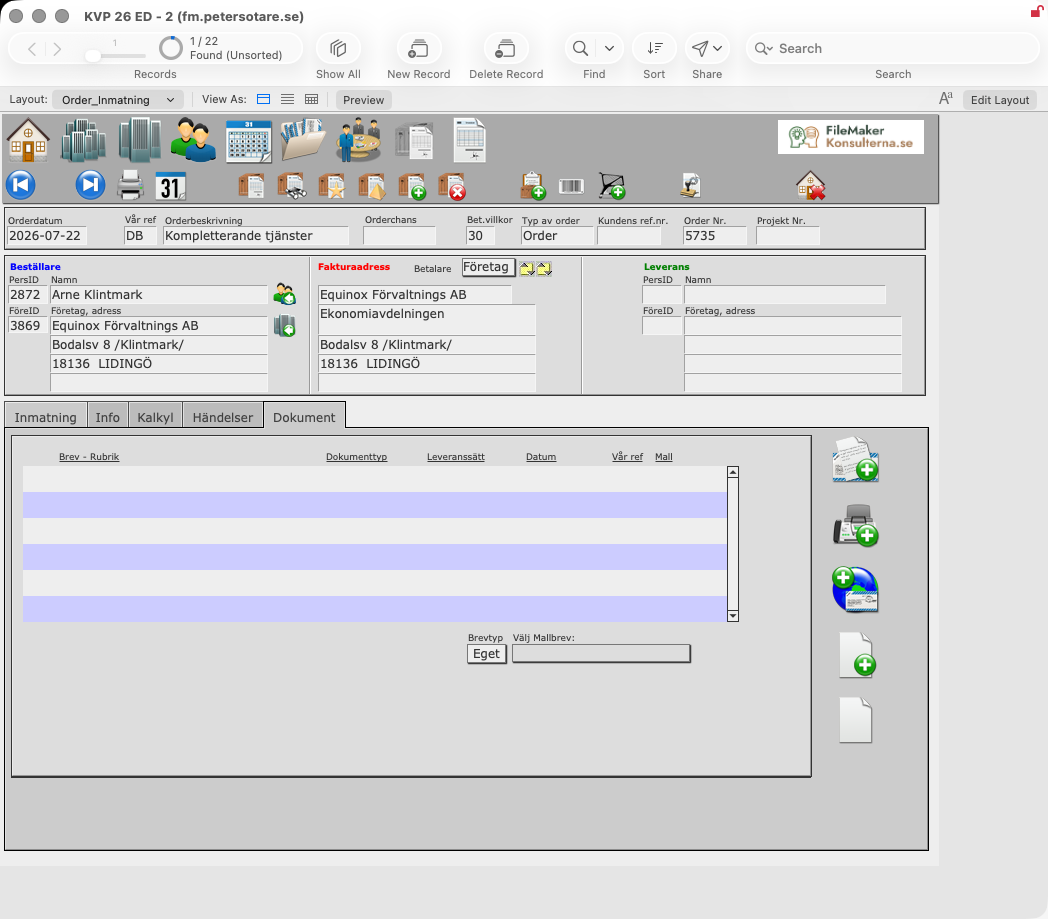
Dokument (Documents)
Documents connected to the order. Write a new one from your own text (Eget, Own) or from a letter template (Mall, Template).
Printing
The Order_Rapporter layout prints the current order as an Offert (Quote), an Orderbekräftelse (Order confirmation) or a Leveransbesked (Delivery note).
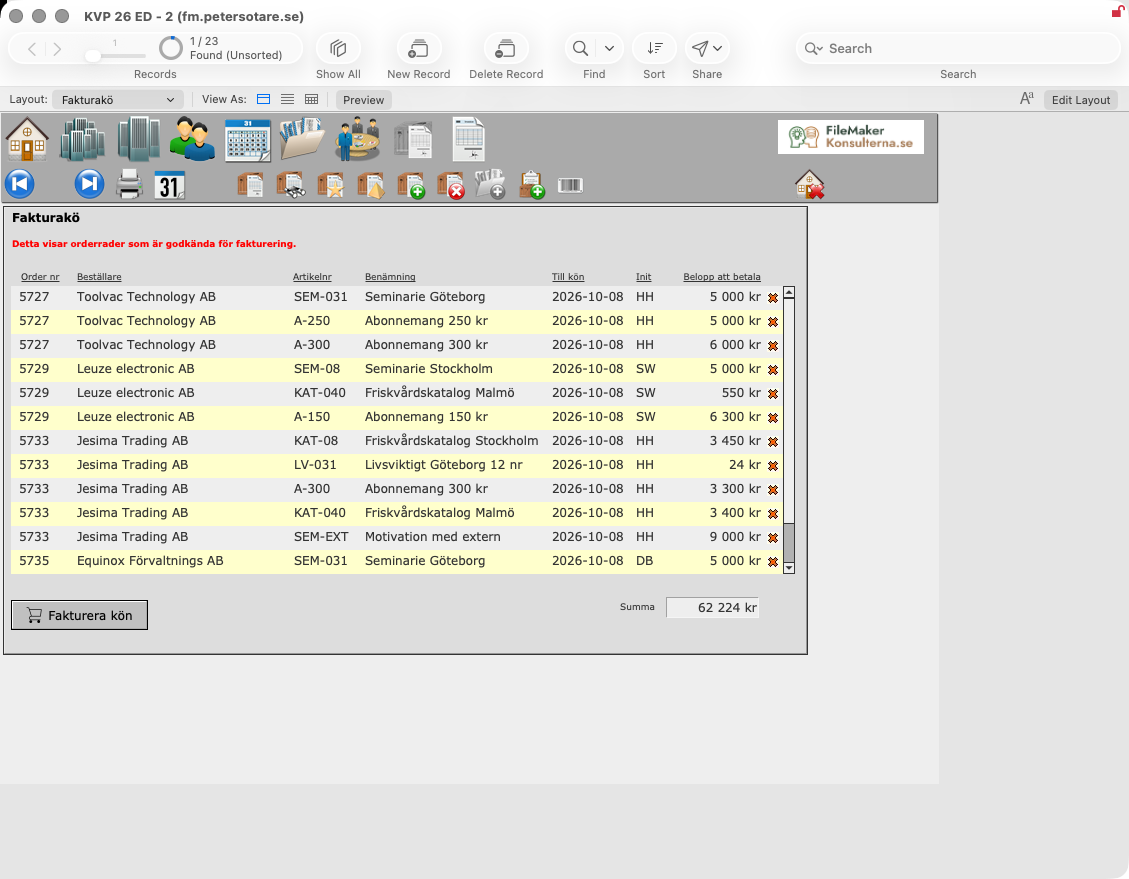
Fakturakö (Invoice queue)
The invoice queue shows the order rows that are approved for invoicing: order number, customer, article, description, the date the row was added to the queue, initials and amount. A row can be taken out of the queue. Fakturera kön (Invoice the queue) creates the invoices.
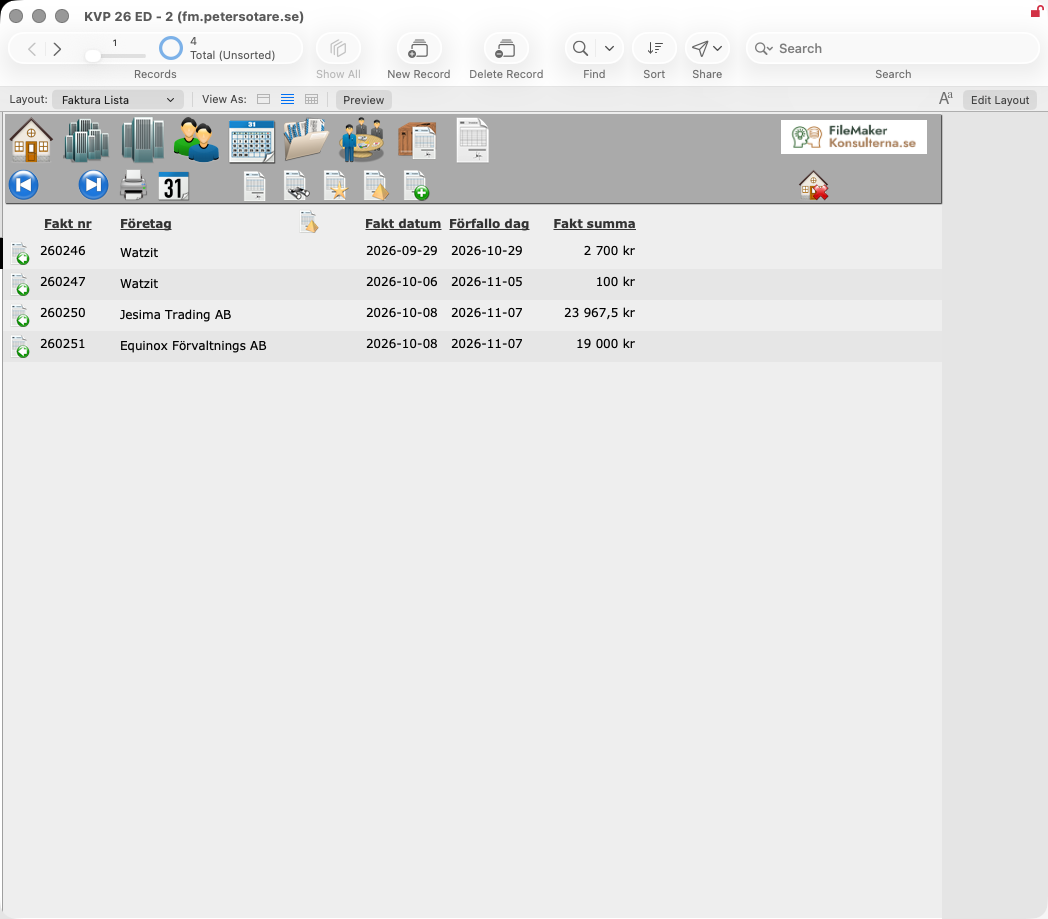
Fakturering (Invoicing)
Faktura Lista lists all invoices with Fakt nr (Invoice number), Företag (Company), Fakt datum (Invoice date), Förfallo dag (Due date) and Fakt summa (Invoice total).
Invoices are created in three ways:
- from the invoice queue, out of approved order rows;
- as a direct invoice from the person card's Fakturor tab;
- from the invoice list.
The invoice card
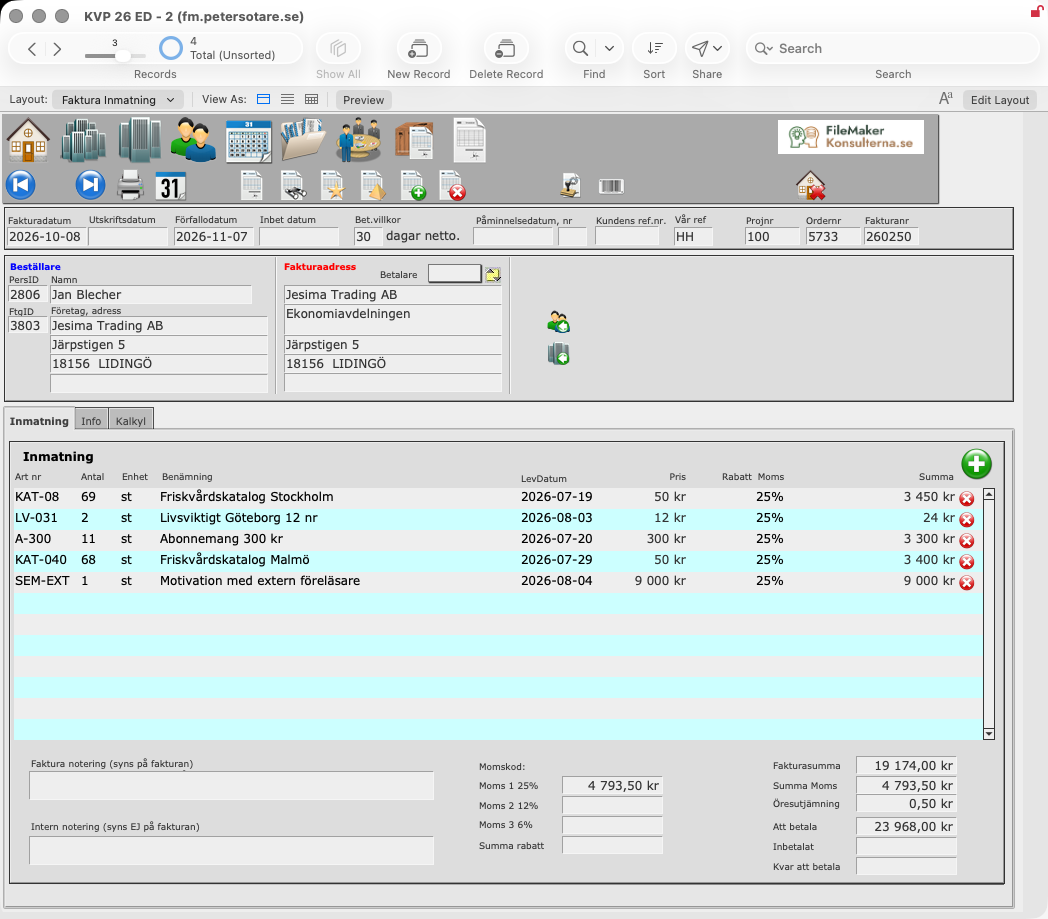
The top of the invoice card holds:
- Fakturanr (Invoice number), Ordernr and Projnr (Project number).
- Fakturadatum (Invoice date), Utskriftsdatum (Printed date), Bet.villkor (Payment terms, days net), Förfallodatum (Due date), Inbet datum (Payment date) and Påminnelsedatum, nr (Reminder date and number).
- Vår ref and Kundens ref.nr.
- Beställare (Customer) and Fakturaadress (Invoice address), with Betalare (Payer) and a button that updates the invoice address.
Inmatning (Entry)
The invoice rows: article number, quantity, unit, description, delivery date, price, discount, VAT and total. Below the rows are:
- Faktura notering (Invoice note), which is printed on the invoice, and Intern notering (Internal note), which is not.
- The totals: Fakturasumma (Invoice total), VAT per rate (Moms 1 25 %, Moms 2 12 %, Moms 3 6 %), Summa Moms (Total VAT), Öresutjämning (Rounding), Summa rabatt (Total discount), Att betala (Amount due), Inbetalat (Paid) and Kvar att betala (Balance outstanding).
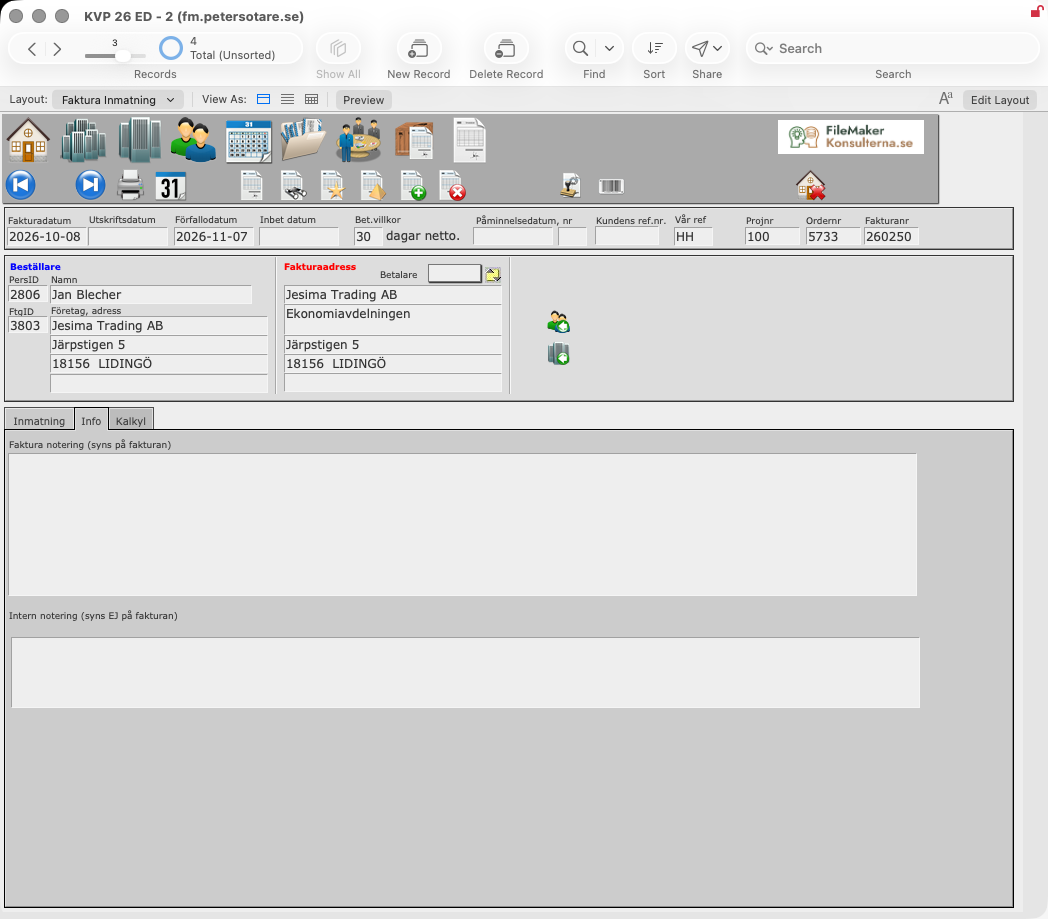
Info
The invoice note and the internal note.
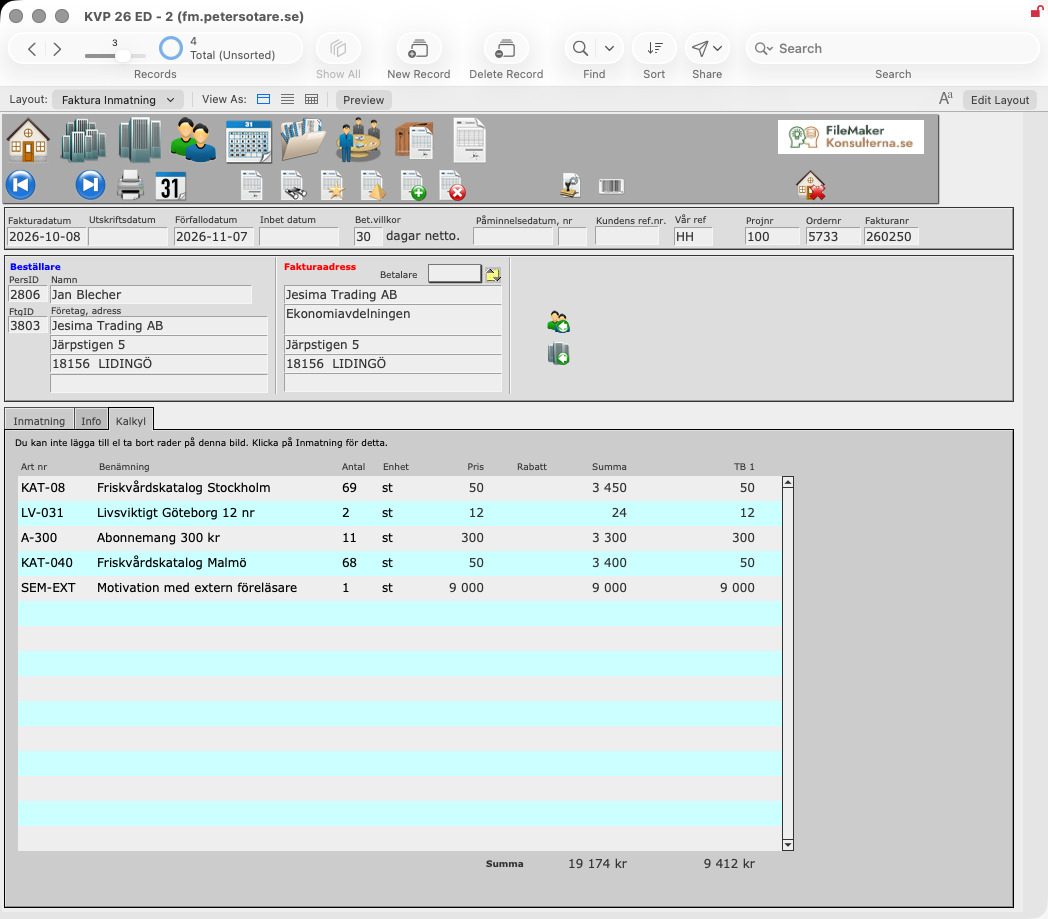
Kalkyl (Calculation)
The rows with TB (contribution margin) per row and for the whole invoice. Rows cannot be added or removed here.
The invoice status, shown in the invoice lists on the company, person and project cards, counts the days left until the due date, or the days past it. Once the payment date is entered, the status is empty.
Invoice reports
The Faktura Rapporter layout collects the invoicing routines:
- Fakturera Fakturakö (Invoice the queue).
- Sök och skriv ut ej utskrivna fakturor (Find and print invoices not yet printed): your own or everyone's (Endast egna eller allas), optionally limited to the date the rows were queued.
- Skriv ut "hittade" fakturor (Print the found invoices).
- Bokföringsunderlag för fakturor and Bokföringsunderlag för betalningar (Accounting records for invoices and for payments). After printing, KVP asks whether the invoices are to be marked as booked, so that they are not included next time.
- Kundsaldolista (Customer balance list) and Kundreskontra (Accounts receivable ledger).
Mallbrev (Letter templates)
Letter templates are reusable texts for letters, emails, quotes and orders. When you write a document from a template, KVP fills in the recipient's and sender's details.
Mallbrev_Lista (List of letter templates) shows each template's number, Brevnamn (Template name), Rubriken på e-post (Email subject) and Författare (Author). Click a column heading to sort by it. A new template is created from the list or from the template card.
At the top of the template card you give the template its name (Namnge standardbrevet, Name the template). The tabs hold the content.
Normalmall (Standard template)
A template for letters and emails:
- Rubrik på E-Post brev (Email subject) and the text itself, written in the large box.
- Sätt in merge fält (Insert merge field) inserts a placeholder at the cursor, which is replaced by real data when a document is written. There are placeholders for the recipient (name, company, address, customer number and so on), the sender (Avs.: name, company, email, direct phone number, signature) and a booked event (Bok.: type, dates, times, place, booked staff).
- Typ av brev (Letter type): Avtal (Agreement), Orderbekräftelse (Order confirmation), Konsultavtal (Consultancy agreement), Anställningsavtal (Employment contract) or Övriga (Other).
- Status: Aktiv (Active) or Inaktiv (Inactive).
- TEXT / HTML: whether an email is sent as plain text or HTML.
- Brev/Bilaga (Letter/Attachment): whether the template is a letter or an attachment.
- Fil (File): the template is based on a file.
- Utskrift (Print layout): Normal with letterhead, Hel sida (Full page, without letterhead) or Offert/Order (Quote/Order).
- Brevnummer (Template number) and the dates the template was created and last changed.
Offert/Ordermall (Quote/order template)
Two blocks of text for quotes and orders, each with its own merge fields. On the order card's Info tab they are copied into the texts printed on the quote, the order confirmation or the delivery note.
Artikel (Articles)
Articles are the products and services you sell. They are used on order rows and invoice rows.
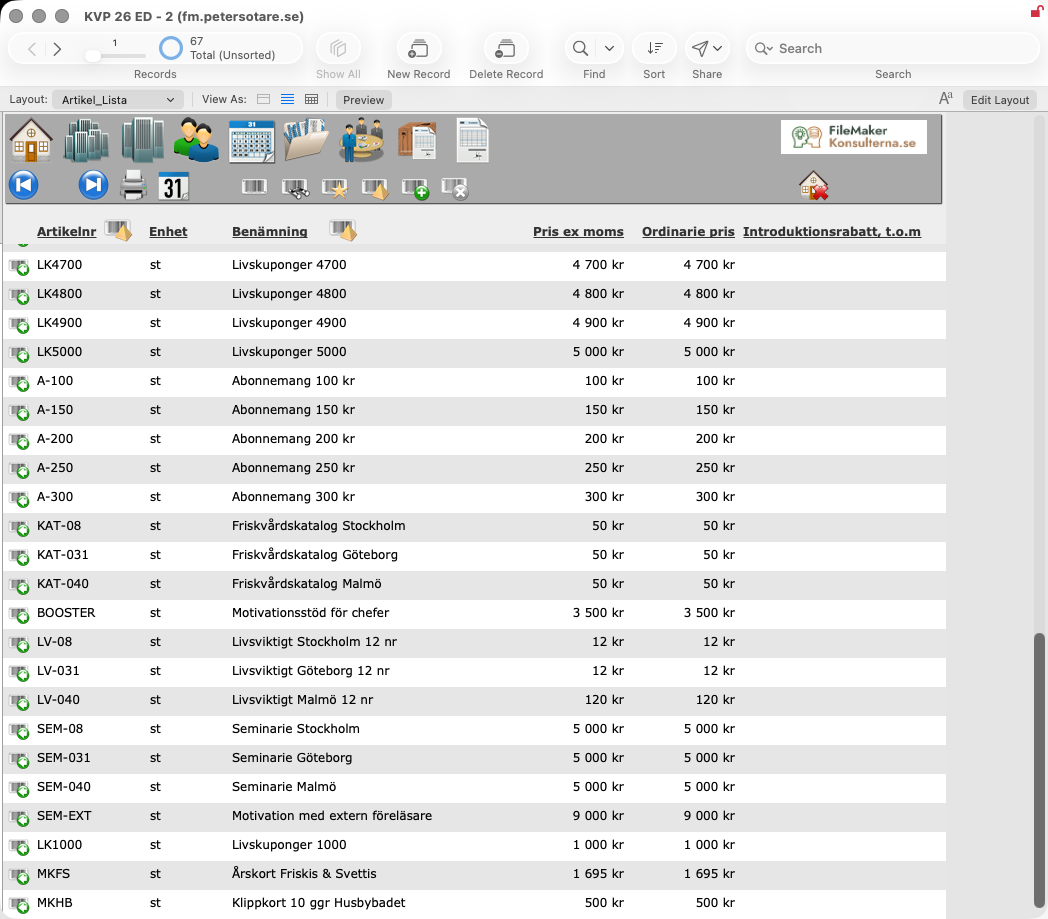
Artikel_Lista (Article list) shows Artikelnr (Article number), Benämning (Description), Ut pris ex moms (Sales price excl. VAT), Ordinarie pris (Regular price), Introduktionsrabatt, t.o.m (Introductory discount, until) and unit. Click a column heading to sort by it.
The article card
Artikel (Article)
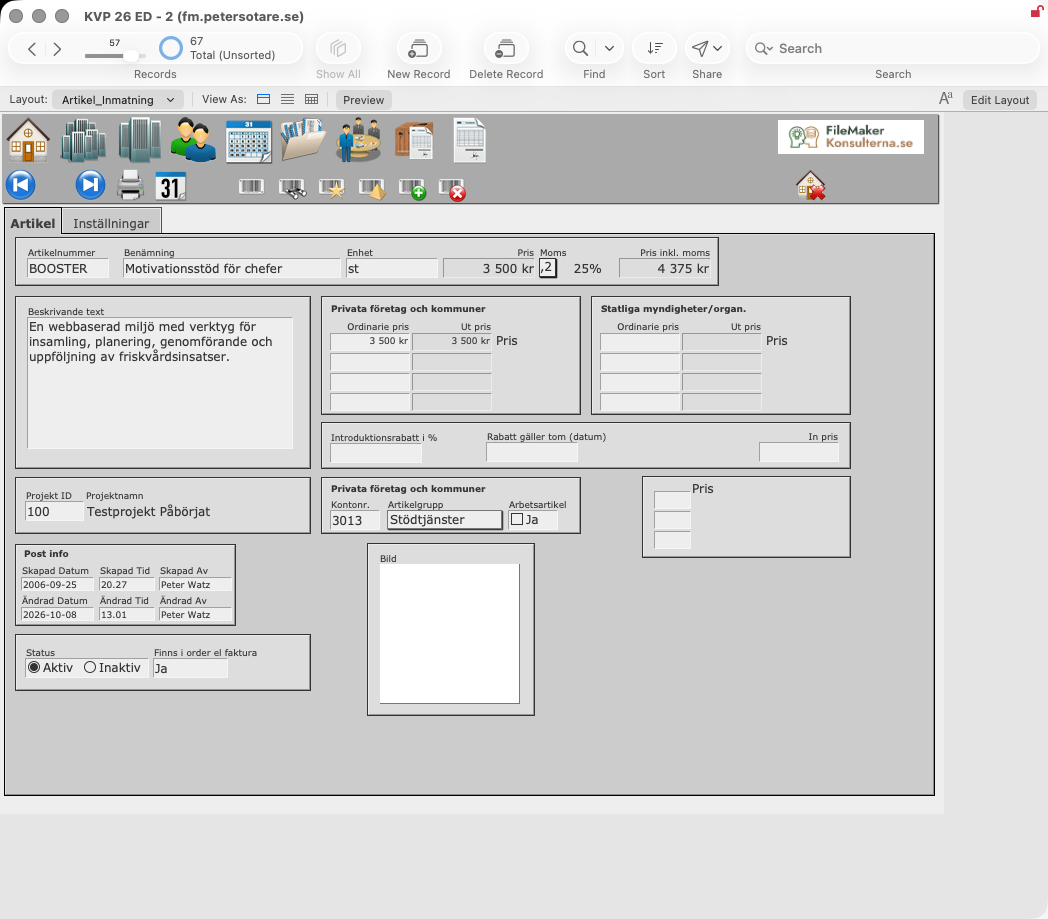
- Artikelnummer, Benämning, Enhet (Unit: st, nr, tim, offert or avtal), Pris (Price), Moms (VAT) and Pris inkl. moms (Price incl. VAT).
- Beskrivande text (Description text): a longer description of the article.
- Prices for two kinds of customer: Privata företag och kommuner (Private companies and municipalities) and Statliga myndigheter/organ. (Government agencies). For each there is an Ordinarie pris (Regular price) and an Ut pris (Sales price).
- Quantity prices: up to four price levels, each starting at a quantity you set. The headings show the quantity each price applies to.
- Introduktionsrabatt i % (Introductory discount in %) and Rabatt gäller tom (datum) (Discount valid until, date). Enter the discount in whole percent, for example 30 for 30 %. Until that date, all sales prices are reduced by the discount. After it, the regular prices apply again.
- In pris (Purchase price): the basis for the contribution margin on orders and invoices.
- Kontonr. (Account number), Artikelgrupp (Article group) and Projekt ID, which links the article to an ongoing project.
- Arbetsartikel (Service article): marks an article that is work performed, such as consulting hours, rather than a product.
- Bild (Picture).
- Status: Aktiv or Inaktiv. Finns i order el faktura (Used in an order or invoice) shows whether the article has been used.
- Post info (Record info): when the article was created and changed, and by whom.
Inställningar (Settings)
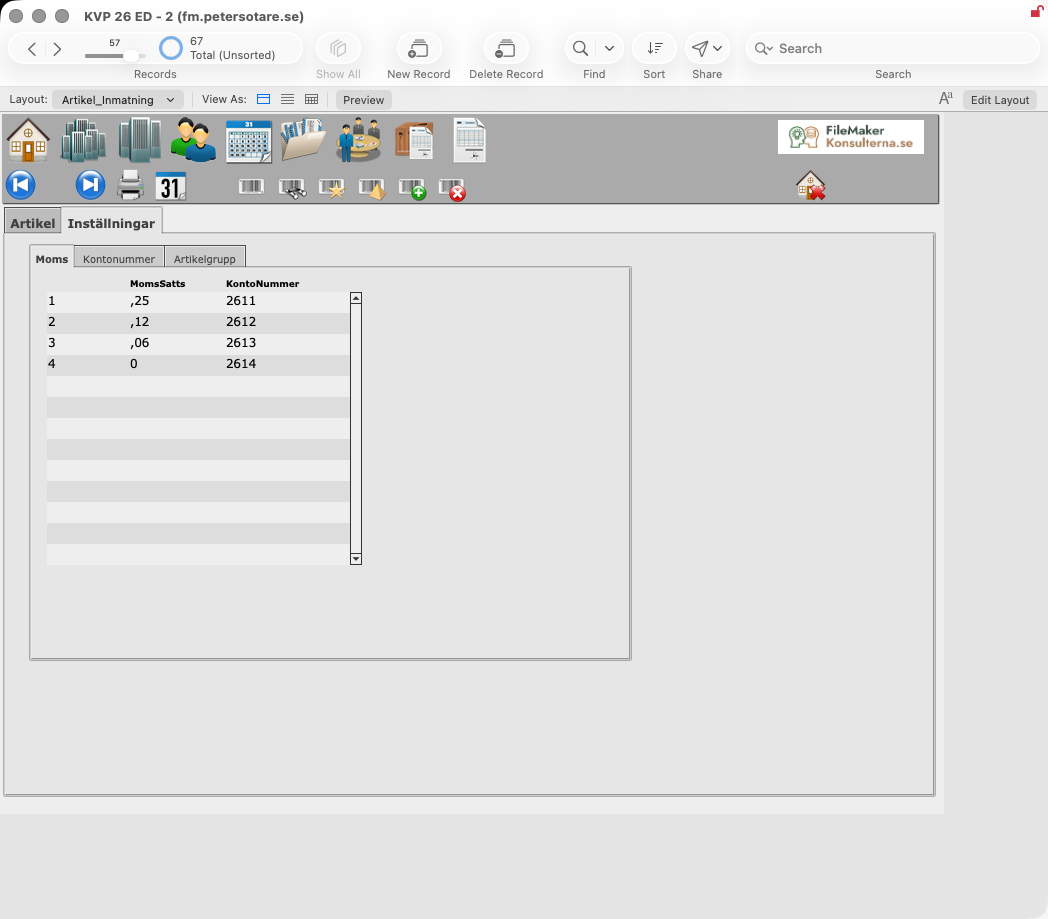
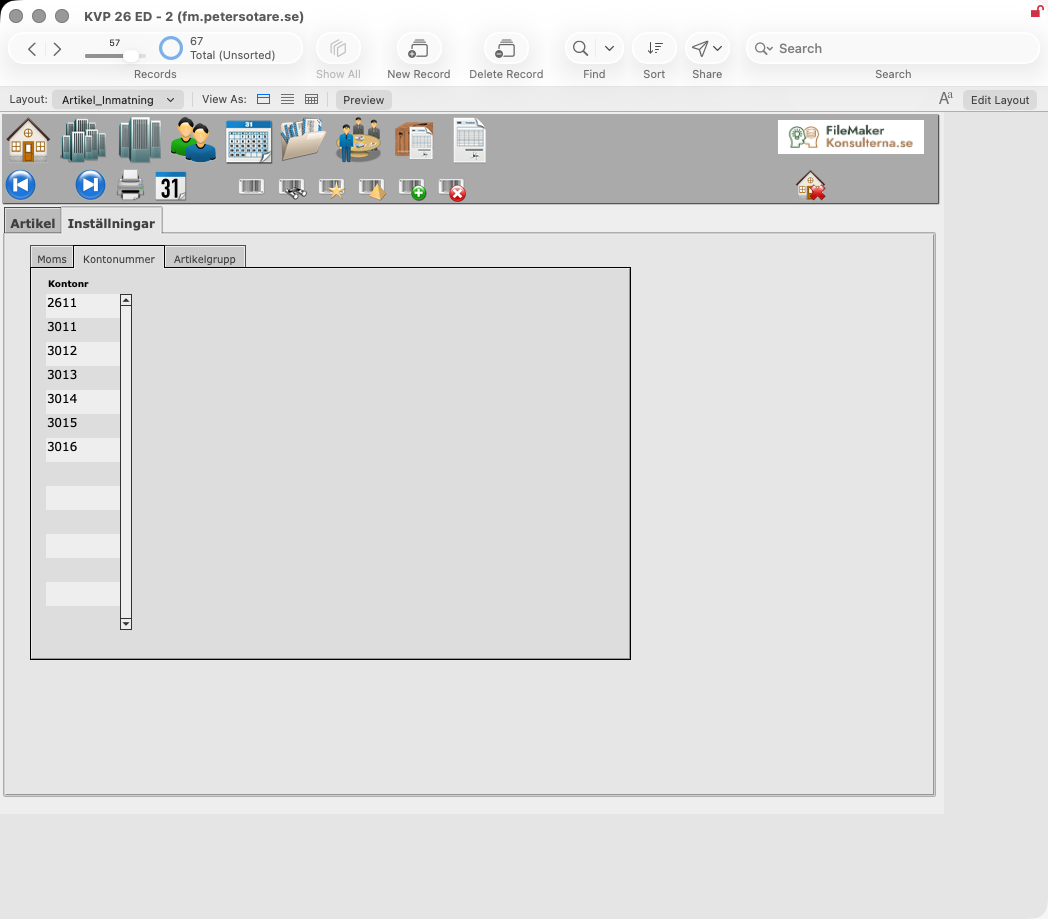
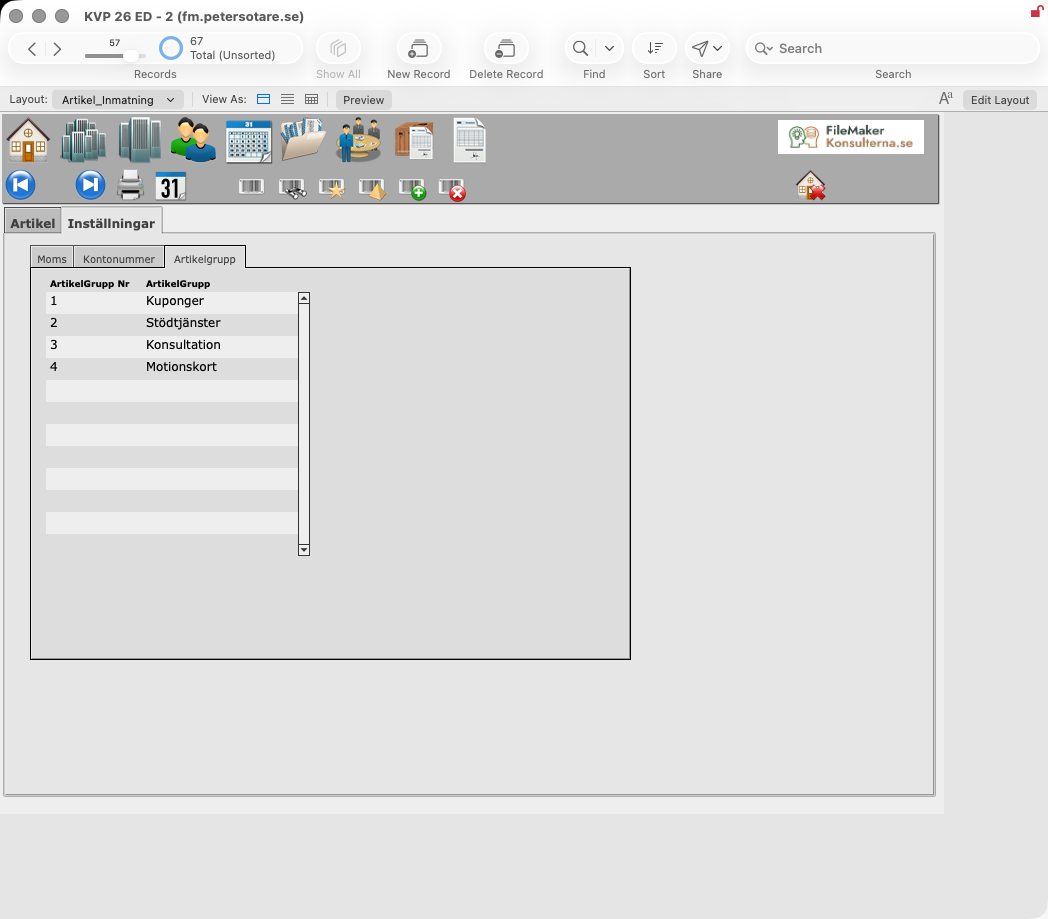
The lists that articles draw from, each on its own tab:
- Moms (VAT): each VAT rate with its account number.
- Kontonummer (Account numbers).
- Artikelgrupp (Article groups): number and name.
Kalender / Agenda (Calendar / Agenda)
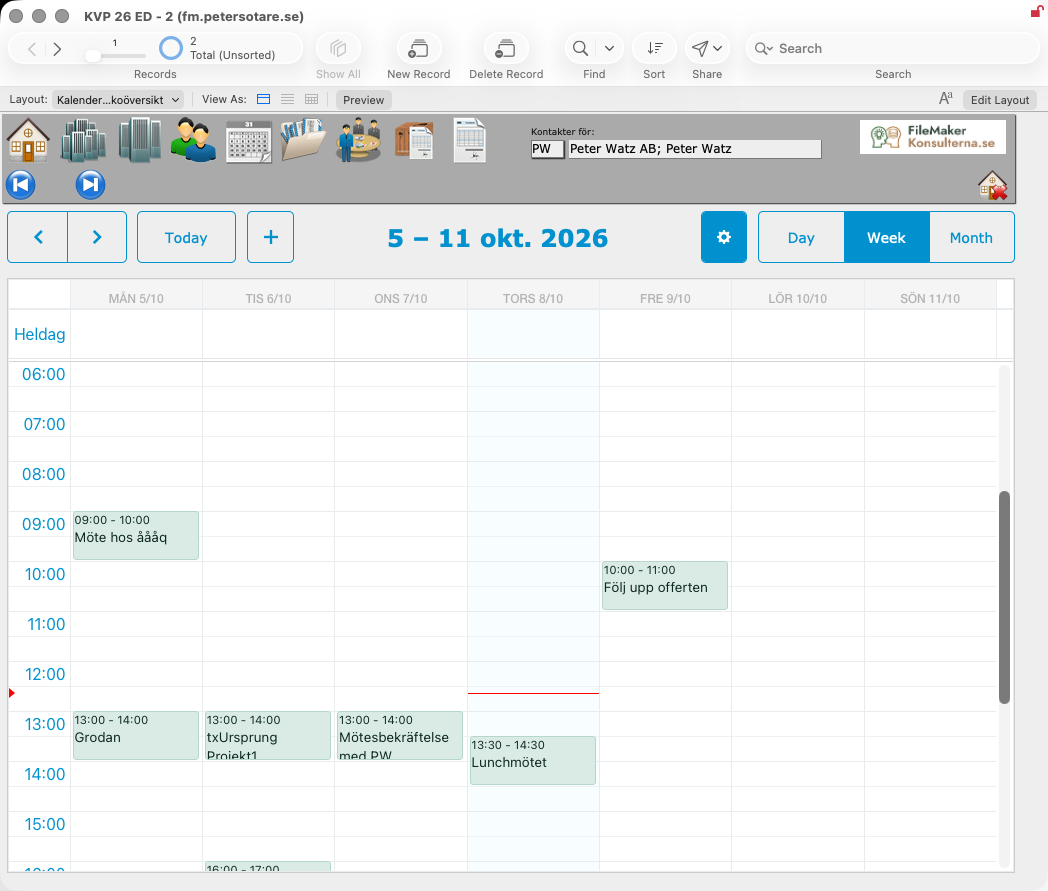
The calendar shows the Händelser (Events): meetings, calls, follow-ups and everything else that is planned. There are three views.
Kalender Veckoöversikt (Week overview)
A graphic calendar.
- Day, Week and Month switch the view; Previous, Next and Today move in time.
- Kontakter för (Contacts for) chooses whose events to show.
- Drag an event to move it to another day or time, or drag its edge to change its length. KVP saves the new date and time on the event.
- Double-click an event to open it on the event card.
- Add Event creates a new event.
Kalender_Lista (Agenda list)
The events as a list, with Datum (Date), Prio (Priority), Init (Initials), Tid (Time), Företag & Person (Company and person), Benämning (Description), Avklarad (Completed) and Typ av kontakt (Contact type).
- The search menu offers ready-made selections: Alla ej avklarade (All not completed), Alla ej avklarade, framtid (All not completed, future), Mina ej avklarade, historia (Mine not completed, past) and Mina ej avklarade, framtid (Mine not completed, future).
- The arrows move the period one or four weeks back or forward, or back to this week.
- Click a column heading to sort by it.
- From the events in the list you can go to their companies, persons or orders, for example to call everyone you are to follow up.
- A selection of events can be saved and opened again later.
Kalender_PersonLista (Staff day overview)
One row per member of staff and one column per hour from 08.00 to 17.00, showing what everyone is doing during the day. The arrows move one day or one week back or forward.
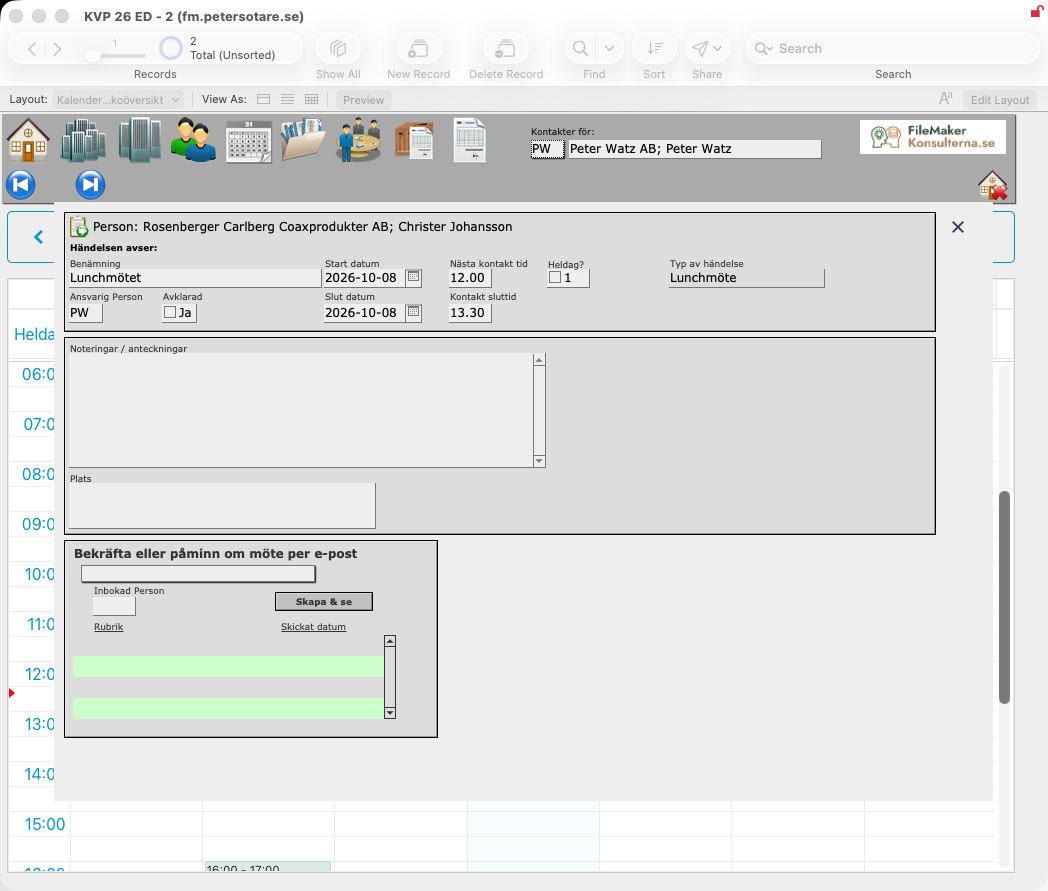
The event card
The event card opens when you double-click an event in the calendar, or when you create an event on a company, person, project or order. It shows:
- Benämning (Description), Typ av händelse (Event type), for example a customer meeting, an outgoing call or a follow-up, and Plats (Place).
- Start datum, Nästa kontakt tid (Start time), Slut datum and Kontakt sluttid (End date and time), and Heldag? (All day).
- Ansvarig Person (Responsible person), Inbokad Person (Booked person) and Avklarad (Completed).
- Noteringar / anteckningar (Notes).
- Händelsen avser (The event concerns): where the event was created. A button takes you there: the company, person, document, project, order or invoice.
- Bekräfta eller påminn om möte per e-post (Confirm or remind about the meeting by email): choose a letter template and click Skapa & se (Create and view). KVP writes the email with the event's details filled in, and lists it under Rubrik (Subject) and Skickat datum (Date sent).
Korrespondens (Correspondence)
All letters and emails are stored as documents, linked to the company and person they were sent to. They are listed on the company card, the person card, the project and the order, and in Dokument_Lista (Document list), which shows Datum (Date), Rubrik (Subject), Typ (Delivery method), Pers (Author), Namn (Recipient) and Företag (Company).
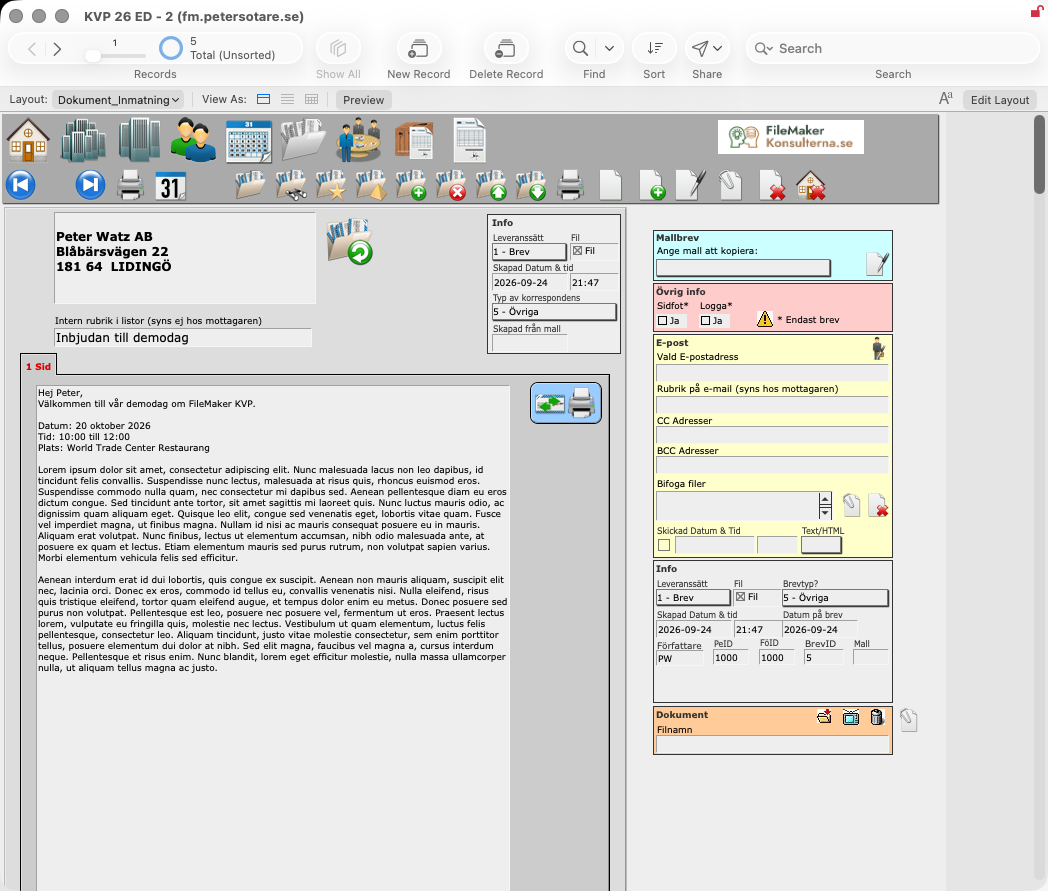
Writing a document
A new document is created from a company, a person, a project or an order, either from your own text or from a letter template. KVP fills in the recipient's name and address, the sender and the date.
On the document card:
- Leveranssätt (Delivery method): Brev (Letter), Epost (Email) or Utskrift (Print).
- Typ av korrespondens (Type of correspondence) and Intern rubrik i listor (Internal heading in lists, not seen by the recipient).
- Ange mall att kopiera (Choose template to copy): copies a template's text into the document. Merge fields are replaced with real data.
- Sidfot (Footer) and Logga (Logo) choose whether the printed letter has a footer and a logo.
- The text of the letter is written on the 1 Sid (Page 1) tab.
Sending by email
- Vald E-postadress (Chosen email address): the recipient's addresses are offered in a list.
- Rubrik på e-mail (Email subject, seen by the recipient), CC Adresser and BCC Adresser.
- Text/HTML: plain text or HTML.
- Bifoga filer (Attach files): add attachments with a file dialog, or clear them.
- A button inserts your email signature.
- Skriv ut/Sänd (Print/Send) prints the letter or sends the email. KVP records Skickad Datum & Tid (Date and time sent).
Several documents can be sent at once as a mass mailing, for example to everyone with a given tag.
Files
A document can also hold a file, for example a scanned contract or a PDF. Ladda upp dokument (Upload document) stores the file in KVP's documents file. Buttons export the file or open it.
Glossary
Swedish terms as they appear on screen, with an English translation and a short description.
| Svenska | English | Description |
|---|---|---|
| Adresser | Addresses | Tab on the person card for addresses other than the company's. |
| Adresskälla | Address source | Where the company's address came from. |
| Affärer | Deals | Tab on the corporate group and company cards. |
| Agenda / Kalender | Agenda / Calendar | The calendar views of events. |
| Aktivera | Activate | Button that enables a deactivated user account. |
| Aktiv / Inaktiv | Active / Inactive | Status of a letter template or an article. |
| Ansvarig Person | Responsible person | The member of staff responsible for an event. |
| Antal anställda | Number of employees | The size of a company. |
| Anteckningar | Notes | Tab on the person card with notes history and events. |
| Användare | User / Users | A person with a user account; also the list where users are administered, and the level for ordinary users. |
| Arbetsartikel | Service article | An article that is work performed rather than a product. |
| Artikel | Article | A product or service that is sold. |
| Artikelgrupp | Article group | Grouping of articles. |
| Att betala | Amount due | The total to pay on an invoice. |
| Att göra, Företag, Person | What to do, company, person | Column on the start menu describing each event. |
| Avklarade | Completed | Filter that shows completed events or hides them. |
| Behörighetsnivå / Nivå | Privilege level / Level | The user's level: Utvecklare, Superuser, Användare or Titta. |
| Bekräfta eller påminn om möte per e-post | Confirm or remind about a meeting by email | Sends a meeting confirmation or reminder from a template. |
| Belopp | Amount | The value of a deal. |
| Beskrivande text | Description text | Longer description of an article. |
| Beställare | Client | The person who ordered a project. |
| Betalare | Payer | Whether the company or the person pays. |
| Bet.villkor | Payment terms | Number of days net until the invoice is due. |
| BFS | BFS | A sales strategy; the start menu counts events by BFS result. |
| Bifoga filer | Attach files | Attachments to an email. |
| Bokföringsunderlag | Accounting records | Printed basis for bookkeeping of invoices or payments. |
| Bransch | Industry | The company's line of business. |
| Brevnamn | Template name | The name of a letter template. |
| Brev/Bilaga | Letter/Attachment | Whether a template is a letter or an attachment. |
| Byt användare | Switch user | Closes KVP so that another user can log in. |
| Byt lösenord | Change password | Button for changing your own password. |
| Byt nivå | Change level | Button that gives a user another privilege level. |
| Dagenskontakter | Today's contacts | Tab on the start menu. |
| Dellevererad | Partly delivered | Order status: some rows are approved for invoicing. |
| Deltagare | Participants | Tab on the project card with everyone taking part in the project. |
| Dokument | Documents | Letters, emails and other documents linked to a company, person, project or order. |
| Ej kvalificerad | Not qualified | Sales stage: the customer does not qualify. |
| Enhet | Unit | The unit an article is sold in. |
| Estatus | Row status | 1 approved for invoicing, 2 in the invoice queue, 3 invoiced. |
| Fakturaadress | Invoice address | The address the invoice is sent to. |
| Fakturakö | Invoice queue | Order rows approved and waiting to be invoiced. |
| Fakturamottagare | Invoice recipient | Sub-tab for entering an alternative invoice recipient. |
| Fakturera kön | Invoice the queue | Creates invoices from the invoice queue. |
| Fakturering | Invoicing | The invoicing module. |
| Fakturor / Faktura | Invoices / Invoice | Invoices sent to a company or person. |
| Från Importen | From the import | The imported values in the import guide. |
| Fått info | Received information | Sales stage. |
| Företag | Company | Any organisation we are in contact with. |
| Företagsanteckningar | Company notes | Notes about a company. |
| Företagsgrupp | Company group | Grouping of companies, 1–3. |
| Företagsinfo | Company info | Company details shown on the person card. |
| Företagskort | Company card | The entry view for a company. |
| Företagstyp | Company type | The kind of company. |
| Förfallodatum | Due date | The date the invoice must be paid. |
| Författare | Author | Who wrote a letter template. |
| Förmedlingsprovision | Referral commission | Commission for referrals. |
| Förväntad projektstart / projektslut | Expected start / end date | The planned start and end of a project. |
| Förv.affärsdatum | Expected deal date | When a deal is expected to close. |
| Tab that searches Google for the company name. | ||
| Heldag | All day | Marks an event that lasts the whole day. |
| Huvudnäring SNI | Main industry (SNI) | Swedish standard industrial classification code. |
| Händelsen avser | The event concerns | Where an event was created. |
| Händelser | Events | Things to do and when: meetings, calls, emails, tasks. |
| Importera | Import | Start-menu button that opens the import guide. |
| Importguiden | Import guide | Brings companies and persons in from an external list without duplicates. |
| Inaktivera | Deactivate | Button that disables a user account. |
| Inbetalat | Paid | Amount paid on an invoice. |
| Inbokad Person | Booked person | The member of staff booked for an event. |
| Initialer | Initials | The person's initials; also the user's account name. |
| Inmatning | Entry view | The form for viewing and editing one record. |
| Introduktionsrabatt | Introductory discount | Discount in whole percent until a given date. |
| In pris | Purchase price | Cost of an article, the basis for contribution margin. |
| I KVP | In KVP | The existing company and person in the import guide. |
| Kalender Veckoöversikt | Week overview | The graphic calendar. |
| Kalender_Lista | Agenda list | Events as a searchable list. |
| Kalender_PersonLista | Staff day overview | Each member of staff's day, hour by hour. |
| Kalkyl | Calculation | Tab showing contribution margin per row. |
| Karta | Map | Tab that shows the company's location on Google Maps. |
| Koncern | Corporate group | A corporate group with its companies. |
| Koncernkort | Corporate group card | The entry view for a corporate group. |
| Kontaktperson | Contact person | A person connected to a company. |
| Kontonr. | Account number | The bookkeeping account for an article. |
| Korrespondens | Correspondence | Letters and emails to and from contacts. |
| Kredit | Credit rating | The company's credit level. |
| Kundnr | Customer number | The company's number in KVP. |
| Kundreskontra | Accounts receivable ledger | Report of customers' open invoices. |
| Kundsaldolista | Customer balance list | Report of each customer's balance. |
| Kvar att betala | Balance outstanding | What remains to be paid on an invoice. |
| Ladda upp dokument | Upload document | Stores a file on a document. |
| Leverans | Delivery | The delivery address of an order. |
| Leveransbesked | Delivery note | Printed delivery note for an order. |
| Leveranssätt | Delivery method | How a document is delivered, for example printed or by email. |
| Levererad - ej fakt | Delivered, not invoiced | Order status: all rows approved, not all invoiced. |
| Lista | List view | A list of records. |
| Logga | Logo | Whether a printed letter has a logo. |
| Mallbrev | Letter template | Reusable text for letters, emails, quotes and orders. |
| Massmärke | Mass tag | Gives a tag to every person in the found set. |
| Meny Start | Start menu | The first layout after login. |
| Merge fält | Merge field | Placeholder replaced by real data when a document is written. |
| Måste byta | Must change | The user must choose a new password at the next login. |
| Märken | Tags | Categories on persons and companies, used to find and group them. |
| Märkning | Tags | Overview of tags and how many companies and persons have them. |
| Märkning/aktivitet | Tag/activity | Tags given to a person in the import guide. |
| Möte bokat | Meeting booked | Sales stage. |
| Navigeringsfältet | Navigation bar | The icons at the top of every layout. |
| Normalmall | Standard template | Tab for the text of letters and emails. |
| Nyhetsbrev | Newsletter | Whether a person receives the newsletter. |
| Nästa kontakt | Next contact | Date and time of an event. |
| OC | Order chance | How likely a deal is to become an order, 1–5. |
| Offert / Order | Quote / Order | Quotes and orders to a company or person. |
| Offert/Ordermall | Quote/order template | Tab with text blocks for quotes and orders. |
| Olevererad | Not delivered | Order status: no rows approved yet. |
| Omsättning | Turnover | The company's annual turnover. |
| Orderbekräftelse | Order confirmation | Printed order confirmation. |
| Orderchans | Order probability | How likely a quote is to become an order, from 1 to 5. |
| Orderstatus | Order status | Olevererad, Dellevererad, Levererad - ej fakt or Fakturerad. |
| Ordersumma | Order total | The total of an order. |
| Ordinarie pris | Regular price | An article's price before any discount. |
| Org. Nr | Corporate identity number | Swedish organisation number. |
| PAR FöretagsID | PAR company ID | The company's ID at the business data supplier PAR. |
| Person | Person | An individual, usually a contact person at a company. |
| PersonID | Person ID | The person's number in KVP. |
| Personkort | Person card | The entry view for a person; the centre of the system. |
| Personmärkning | Person marking | A classification of a person. |
| Persontyp | Person type | The type of person; Användare marks a user of the system. |
| Plats | Place | Where an event takes place. |
| Post info / Postinfo | Record info | When a record was created and changed, and by whom. |
| Prio | Priority | Marks a prioritised event. |
| Process | Process | A predefined series of events that can be created in one go. |
| Projekt | Project | A project linked to companies and persons. |
| Projektansvarig | Project manager | The member of our staff responsible for the project. |
| Projektbeskrivning | Project description | Free-text description of a project. |
| Projektfunktion | Project role | A participant's role in the project. |
| Projekthändelser | Project events | Events linked to a project. |
| Projektstatus | Project status | Planerat (Planned), Påbörjat (Started) or Slutfört (Completed). |
| Påbörjad | Started | Sales stage. |
| Påminnelse | Reminder | Payment reminder for an overdue invoice. |
| Ramavtal | Framework agreement | Sales stage. |
| Registrera | Register | Button that creates a user account. |
| Reg.datum | Date registered | When a deal was registered. |
| Relationer | Relationships | Links between companies and companies, companies and persons, and persons and persons. |
| Rensa | Clear | Clears the chosen company and person in the import guide. |
| Ring åter | Call back | Call result. |
| Saldo | Balance | The amount still to be paid on an invoice. |
| Sidfot | Footer | Whether a printed letter has a footer. |
| Skapa & se | Create and view | Writes the confirmation email for an event. |
| Ska köpa | Will buy | Sales stage. |
| Skriv ut/Sänd | Print/Send | Prints a letter or sends an email. |
| Status | Status | Whether the user account is active or inactive. |
| Superuser | Superuser | Level that works with all data and administers users. |
| Tackat nej | Declined | Sales stage. |
| Ta bort konto | Delete account | Button that deletes a user account but keeps the person. |
| TB 1 / TB | Contribution margin | Price minus cost, per row and in total. |
| Titta | Viewer | Level that can read data but not change it. |
| Typ av brev | Letter type | Category of a letter template. |
| Typ av kontakt | Contact type | Kind of event: meeting, call, email and so on. |
| Typ av korrespondens | Type of correspondence | Category of a document. |
| Typ av order | Order type | Offert (Quote), Order or Produktion (Production). |
| Uppföljning | Follow-up | Sales stage. |
| Upptaget/Ej svar | Busy/No answer | Call result. |
| Utskrift | Print layout | How a template is printed: normal, full page or quote/order. |
| Utvecklare | Developer | Level for the client's own developer. |
| Ut pris | Sales price | The price the customer pays, excl. VAT. |
| Vald E-postadress | Chosen email address | The recipient's email address for a document. |
| Visa allas | Show everyone's | Shows all users' events on the start menu. |
| Vår ref | Our reference | The member of our staff responsible. |
| Välj | Choose | Picks a matching company or person. |
| Välj behörighetsnivå | Choose privilege level | The dialog where the level is chosen. |
| Webb | Web | Tab that shows the company's website. |
| Återställ lösenord | Reset password | Button that gives a user a new temporary password. |
| Ändra lösenord | Change passwords | Button that opens the user list for administrators. |
| Öresutjämning | Rounding | Rounding of the invoice total to whole kronor. |
| Överblick | Overview | Tab on the start menu. |
| Övrig info | Other info | Tab on the person card with record info and user settings. |


